Light @ Blackbox Theatre
Lighting in the Blackbox @ Janskerkhof is controlled through ArtNet
You can connect to this system from your own laptop or with the Blackbox computers.
Login to computer GW95 tot use QLC with a preset patch.
For working on your own laptop or the other computer check this page
1. Connect to the local intranet : WPMArtNet
The password is provided by the host during your introduction, this router also has internet acces.
2. Open QLC (logo on the desktop or taskbar)

(if prompted choose the option: Q Light Controller Plus)
This opens an empty file!
To add the Blackbox fixtures, open the QLC patch on the desktop using the 'open' logo in the top bar:
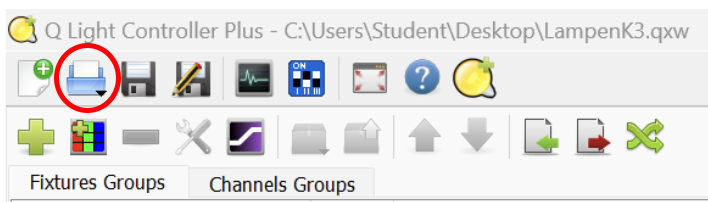
And choose the Lampen K3 file on the desktop
(yes this is confusing, you are opening the same file again...)
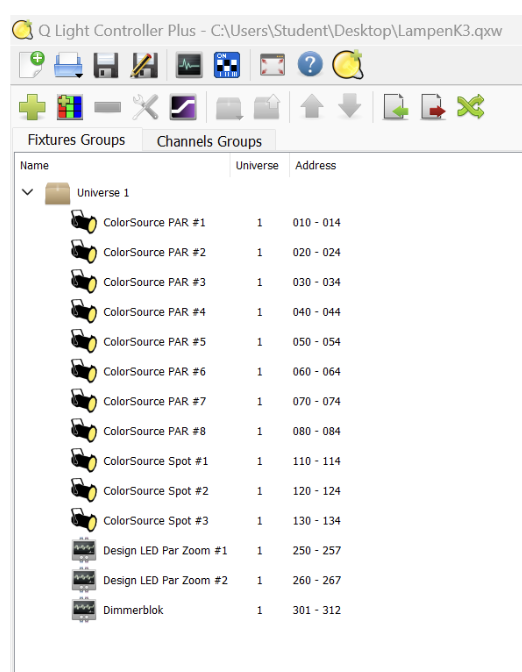
You should now see fixtures added:
Check the TABS at the bottom:

Fixtures: Shows you which fixtures have been added to the patch. This means these can be controlled when added to this daisychain. If you want to add fixtures, please 'save as' this file for your personal patch.
Inputs/outputs:
Shows you the connection to send the data into the daisychain. For this Blackbox & Artnet always choose: 10.0.0.xx
>> This only shows us if you are connected to the WPMArtNet wifi! the XX number may vary.
If you don't see this option, check your wifi connection. 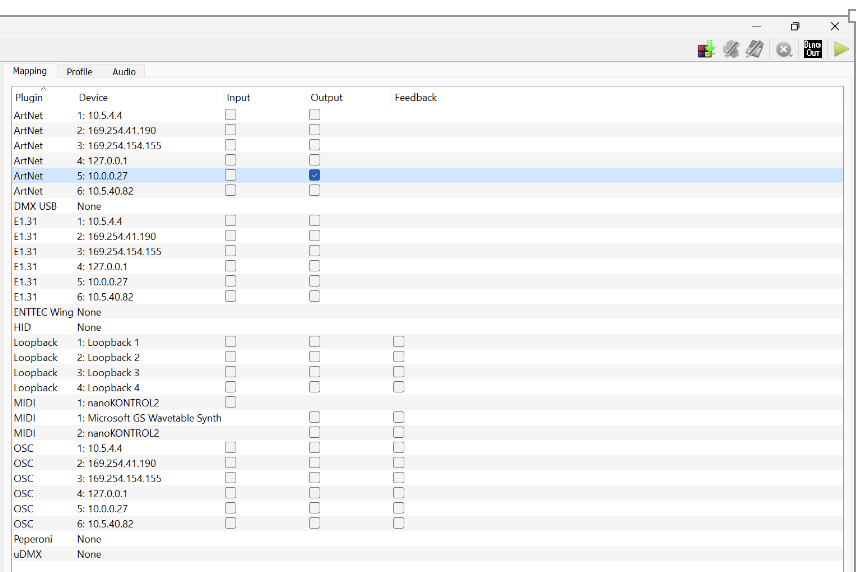
Simple Desk:
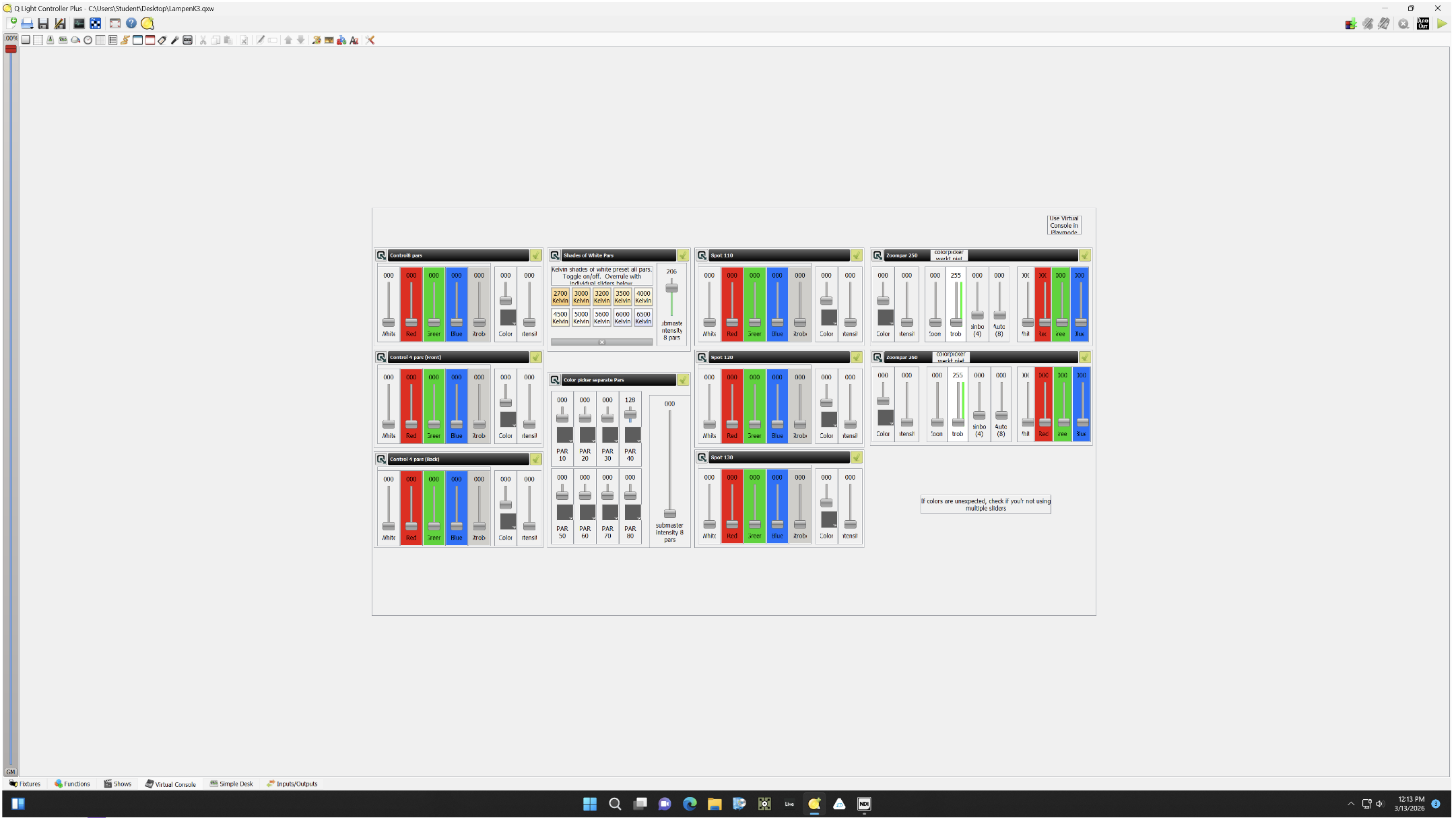
Virtual Console: This is a virtual lighting desk for when all the pars & spots are added to the daisychain. 
Press the top Play button to acces the possibilities (controlling 4/8 pars, all pars in white balance presets or pars/spots with the colorpicker. Note: this console is NOT the best design... also, when using the simple desk, it overrules the virtual console which may be confusing)