
Drivers

Check our this dudes tutorial:
https://www.youtube.com/watch?v=u1AzY4OxzQM

  • Select the right type of driver for your kinect.
  • Download & install as instructed on the pages below
  • tip: only install one type of kinect a time on your pc, as things may get messy after mixing.

Kinect 360 (SDK 1.8)

    Install the https://www.microsoft.com/en-US/download/details.aspx?id=40278
    and
    https://www.microsoft.com/en-US/download/details.aspx?id=40277Kinect Runtime 1.8 
    or Kinect for Windows SDK 1.8 from Microsoft.
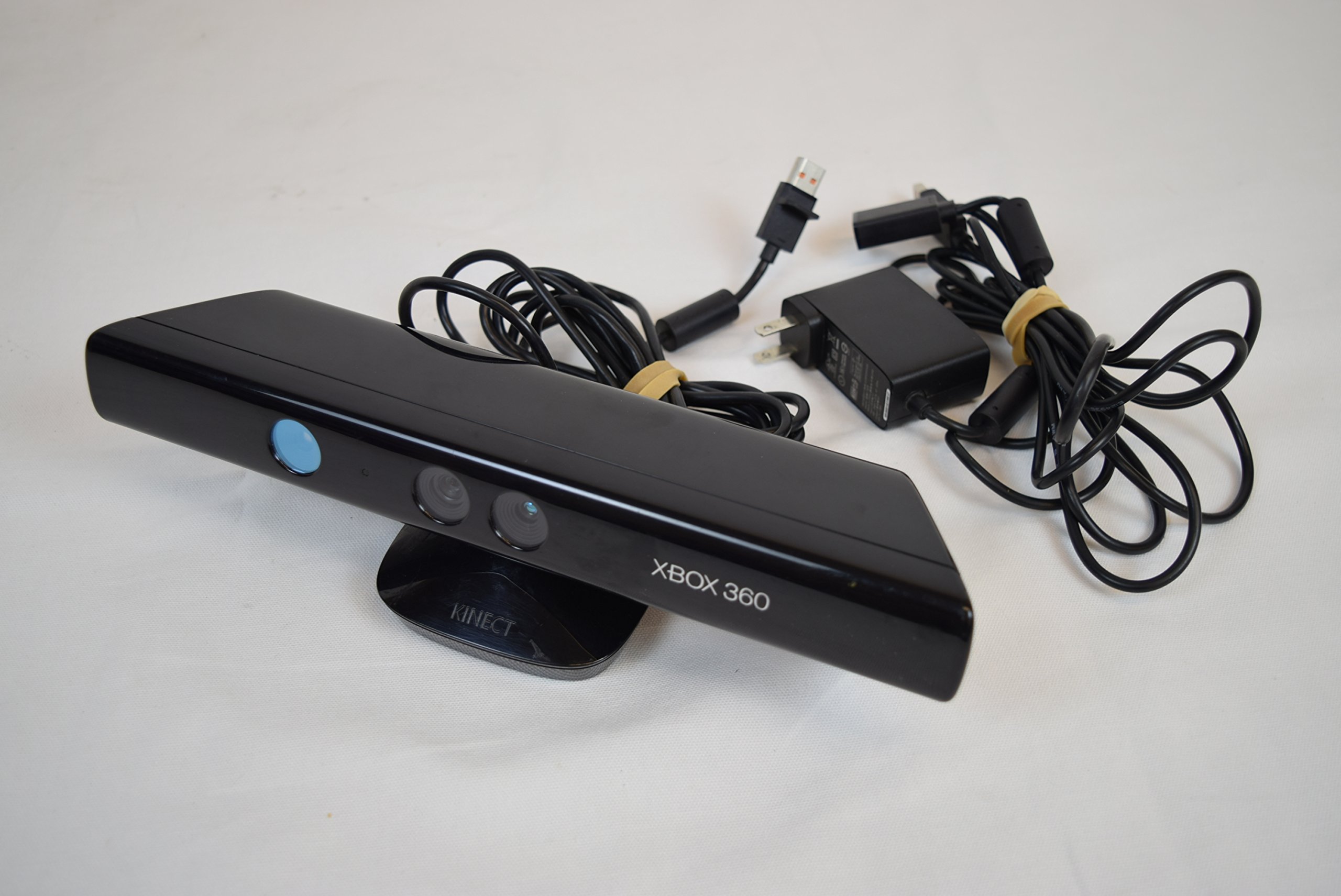
    kinect 360.jpeg

    This sensor is widely available on 'marktplaats ' & doesn't cost much. Don't forget to also purchase a dedicated Kinect power/USB cable to connect it to your computer!


    Kinect One (SDK 2.0)
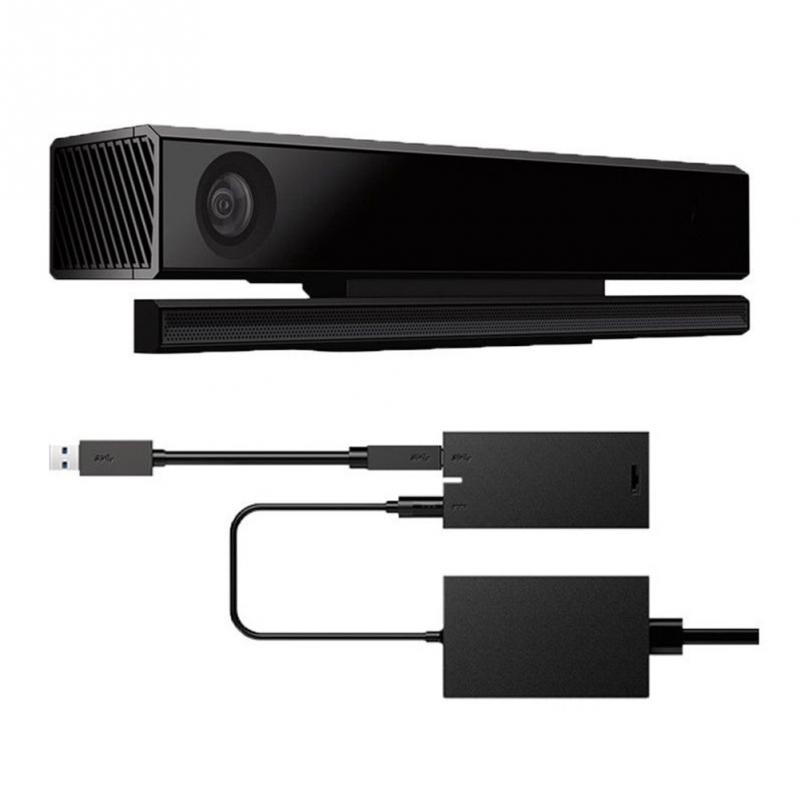
      Install the https://www.microsoft.com/en-US/download/details.aspx?id=44561Kinect SDK 2.0 from Microsoft.
      and
      https://www.microsoft.com/en-US/download/details.aspx?id=44559

      KinectOne.jpeg

      Kinect Azure
      You can find installation details for Azure Kinect Sensor SDK and Firmware here.
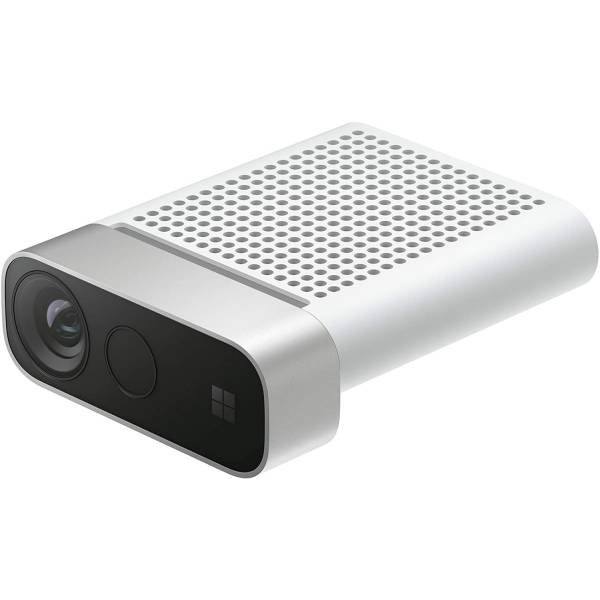
      kinect azure.jpg

      TIPS FOR WORKING WITH ALL KINECT SENSORS

        Always connect the AC power supply that comes with the Kinect sensor. The green LED will light up under USB power, however the sensor will not function correctly unless the AC power supply is also connected. Kinect V1 can be less stable on USB3.0 ports, try USB2.0 ports if you are experiencing problems connecting tot he device or the connection drops out after some time. If using multiple Kinects, each Kinect sensor must be connected to its own USB controller. On some computers multiple USB ports will be on the same USB controller, this will cause problems if two Kinects are sharing that same controller. Refer to your computer's Device Manager to inspect which ports belong to each USB controller.