# Vr on Quest (beginners)

Some usefull tips to get started with Occulus Quest for mixed reaity &amp; other than gaming experiences.

# Setting Up, resetting & Starting with Meta Quest

## Set up the Meta Quest VR headset in 5 steps

<div class="grid gap-y--2 gap-x--6@sm gap-x--8@md section--2" id="bkmrk-"><div class="grid gap-y--2 gap-x--6@sm gap-x--8@md section--2"><div class="col--12 col--6@sm push--6@sm"><div class="video-container"><iframe class="video-container__video js-text-video-youtube-wPQQ6vHlIN0" height="241" id="bkmrk--6" src="https://www.youtube.com/embed/wPQQ6vHlIN0?rel=0&enablejsapi=1" style="width:482px;height:241px;" title="Meta Quest 3 | How to Setup" width="482"></iframe>

</div></div></div></div><div class="grid gap-y--2 gap-x--6@sm gap-x--8@md section--2" id="bkmrk-step-1.-check-if-all"><div class="grid gap-y--2 gap-x--6@sm gap-x--8@md section--2"><div class="col--12 col--6@sm pull--6@sm"><div class="section--2"><div class="advisory-content__block-content"><div class="markdown">- Step 1. Check if all the parts are in the box. If necessary do a factory reset.
- Step 2. Download the Meta app
- Step 3. Create a Meta account
- Step 4. Connect the VR headset
- Step 5. Put on the Quest VR headset and use it

</div></div></div></div></div></div>## Step 1. Check the VR headset

<div class="js-bug-reporter-section advisory-content__block section" id="bkmrk--0"><div class="js-bug-reporter-section advisory-content__block section"><div class="grid gap-y--2 gap-x--6@sm gap-x--8@md section--2"><div class="col--12 col--6@sm push--6@sm">![In the box](https://image.coolblue.nl/624x351/content/a281310e80895e0a80d4924083de5963)</div><div class="col--12 col--6@sm pull--6@sm"><div class="section--2"><div class="advisory-content__block-content"><div class="markdown">  
</div></div></div></div></div></div></div>When you open the box of the Meta Quest VR headset, you'll find a manual, a VR headset, 2 controllers, a charger, a charging cable, and a spacer for people with glasses. The first thing you should do is fully charge the Meta Quest VR headset with the charger and the charging cable.

## Resetting the Quest  


When borrowing a Quest Headset from HKU you may find somebody else's account.   
\*\* Beware: resetting can be a pain in the ass &amp; it's advisory to only do this when it is inevitable.   
At Janskerkhof the sets are connected to a Blackbox account, check in with us before resetting please\*\*  
  
  
To make full use of the headset &amp; connect it to your phone your need to do a factory reset:

<iframe height="314" src="https://www.youtube.com/embed/yukj_T3-oqQ" width="560"></iframe>

<span class="x117nqv4">To perform a factory reset using your phone:</span>

1. <span class="xbks1sj x17gzxuv x3a6nna xm5vtmc x1t2x7uc x1o1n6r0 x1wsgf3v x1c773n9 x1k03ns3 xpbi8i2 x9820fh x1npfmwo xhj0du5 xrm2kyc xjprkx4 xlu1awn x12429cg x6tc29j xbq7h4v x6jdkww xq9mrsl">Open the Meta Quest app on your phone.</span>
2. <span class="xbks1sj x17gzxuv x3a6nna xm5vtmc x1t2x7uc x1o1n6r0 x1wsgf3v x1c773n9 x1k03ns3 xpbi8i2 x9820fh x1npfmwo xhj0du5 xrm2kyc xjprkx4 xlu1awn x12429cg x6tc29j xbq7h4v x6jdkww xq9mrsl">Tap <span class="x117nqv4">Menu</span> then tap <span class="x117nqv4">Devices</span>.</span>
3. <span class="xbks1sj x17gzxuv x3a6nna xm5vtmc x1t2x7uc x1o1n6r0 x1wsgf3v x1c773n9 x1k03ns3 xpbi8i2 x9820fh x1npfmwo xhj0du5 xrm2kyc xjprkx4 xlu1awn x12429cg x6tc29j xbq7h4v x6jdkww xq9mrsl">Tap the headset connected to your phone.</span>
4. <span class="xbks1sj x17gzxuv x3a6nna xm5vtmc x1t2x7uc x1o1n6r0 x1wsgf3v x1c773n9 x1k03ns3 xpbi8i2 x9820fh x1npfmwo xhj0du5 xrm2kyc xjprkx4 xlu1awn x12429cg x6tc29j xbq7h4v x6jdkww xq9mrsl">Tap <span class="x117nqv4">Headset settings</span>, then tap <span class="x117nqv4">Advanced settings</span>.</span>
5. <span class="xbks1sj x17gzxuv x3a6nna xm5vtmc x1t2x7uc x1o1n6r0 x1wsgf3v x1c773n9 x1k03ns3 xpbi8i2 x9820fh x1npfmwo xhj0du5 xrm2kyc xjprkx4 xlu1awn x12429cg x6tc29j xbq7h4v x6jdkww xq9mrsl">Tap <span class="x117nqv4">Factory reset</span>, then <span class="x117nqv4">Reset</span>.</span>

<span class="x117nqv4">To perform a factory reset using the headset:</span>

1. <span class="xbks1sj x17gzxuv x3a6nna xm5vtmc x1t2x7uc x1o1n6r0 x1wsgf3v x1c773n9 x1k03ns3 xpbi8i2 x9820fh x1npfmwo xhj0du5 xrm2kyc xjprkx4 xlu1awn x12429cg x6tc29j xbq7h4v x6jdkww xq9mrsl">Turn off your headset.</span>
2. <span class="xbks1sj x17gzxuv x3a6nna xm5vtmc x1t2x7uc x1o1n6r0 x1wsgf3v x1c773n9 x1k03ns3 xpbi8i2 x9820fh x1npfmwo xhj0du5 xrm2kyc xjprkx4 xlu1awn x12429cg x6tc29j xbq7h4v x6jdkww xq9mrsl">Hold the <span class="x117nqv4">power</span> and <span class="x117nqv4">volume (-)</span> buttons on your headset down simultaneously until the boot screen loads on your headset.</span>
3. <span class="xbks1sj x17gzxuv x3a6nna xm5vtmc x1t2x7uc x1o1n6r0 x1wsgf3v x1c773n9 x1k03ns3 xpbi8i2 x9820fh x1npfmwo xhj0du5 xrm2kyc xjprkx4 xlu1awn x12429cg x6tc29j xbq7h4v x6jdkww xq9mrsl">Use the <span class="x117nqv4">volume buttons</span> on your headset to highlight <span class="x117nqv4">Factory Reset</span> and press the <span class="x117nqv4">power button</span>.</span>
4. <span class="xbks1sj x17gzxuv x3a6nna xm5vtmc x1t2x7uc x1o1n6r0 x1wsgf3v x1c773n9 x1k03ns3 xpbi8i2 x9820fh x1npfmwo xhj0du5 xrm2kyc xjprkx4 xlu1awn x12429cg x6tc29j xbq7h4v x6jdkww xq9mrsl">Use the <span class="x117nqv4">volume buttons</span> on your headset to highlight <span class="x117nqv4">Yes</span> and press the <span class="x117nqv4">power button</span>.</span>

more info: [https://www.meta.com/en-gb/help/quest/articles/fix-a-problem/troubleshoot-headsets-and-accessories/troubleshooting-factory-reset-quest/](https://www.meta.com/en-gb/help/quest/articles/fix-a-problem/troubleshoot-headsets-and-accessories/troubleshooting-factory-reset-quest/)

## Step 2: Download the Meta app

<div class="js-bug-reporter-section advisory-content__block section" id="bkmrk--2"><div class="js-bug-reporter-section advisory-content__block section"><div class="grid gap-y--2 gap-x--6@sm gap-x--8@md section--2"><div class="col--12 col--6@sm push--6@sm">![Download the Meta app](https://image.coolblue.nl/624x351/content/6fdfdc63e6ab5aba40b4b241c4ac87a0)</div><div class="col--12 col--6@sm pull--6@sm"><div class="section--2"><div class="advisory-content__block-content"><div class="markdown">  
</div></div></div></div></div></div></div>On your phone, go to the Google Play Store or the Apple App Store. Search for 'Meta app' and download the Meta app. After the installation, you can open the app. You need a Meta account and a Meta Horizon account.

## Step 3: Create a Meta account

<div class="js-bug-reporter-section advisory-content__block section" id="bkmrk--3"><div class="js-bug-reporter-section advisory-content__block section"><div class="grid gap-y--2 gap-x--6@sm gap-x--8@md section--2"><div class="col--12 col--6@sm push--6@sm">![Create a Meta account](https://image.coolblue.nl/624x351/content/94597d38b8c58e852badf1e8c84e5545)</div><div class="col--12 col--6@sm pull--6@sm"><div class="section--2"><div class="advisory-content__block-content"><div class="markdown">  
</div></div></div></div></div></div></div>To create a Meta account, you only need a name, date of birth, phone number, email address, and payment information. Follow the steps until you get the message that you created an account. After you create a Meta account, you have to create a Meta Horizon account. That's a social media platform for the Metaverse. Go through all the steps and complete the creation process.

## Step 4: Connect VR headset

<div class="js-bug-reporter-section advisory-content__block section" id="bkmrk--4"><div class="js-bug-reporter-section advisory-content__block section"><div class="grid gap-y--2 gap-x--6@sm gap-x--8@md section--2"><div class="col--12 col--6@sm push--6@sm">![Connect the Meta Quest 2 to the app](https://image.coolblue.nl/624x351/content/d66a4ae29b1b538e744d228b4d1c485d)</div><div class="col--12 col--6@sm pull--6@sm"><div class="section--2"><div class="advisory-content__block-content"><div class="markdown">  
</div></div></div></div></div></div></div>Turn the Meta Quest VR headset on and hold it near your phone. Make sure the Bluetooth on your phone is enabled and connect the phone to the VR headset via the Meta app. Don't close the app while it's connecting.

## Step 5: Put on the Meta Quest VR headset and use it

<div class="js-bug-reporter-section advisory-content__block section" id="bkmrk--5"><div class="js-bug-reporter-section advisory-content__block section"><div class="grid gap-y--2 gap-x--6@sm gap-x--8@md section--2"><div class="col--12 col--6@sm push--6@sm">![](https://image.coolblue.nl/624x351/content/c1fafc2eb0223a7a61f97ab245bd7d6a)</div><div class="col--12 col--6@sm pull--6@sm"><div class="section--2"><div class="advisory-content__block-content"><div class="markdown">  
</div></div></div></div></div></div></div>Put on the VR headset and follow the instructions on the screen. During this process, you'll also connect the headset to the WiFi. After, the Quest VR headset will start updating the software. The VR headset makes a sound when the update is done. Keep the Meta app open during this process. Is the process done? The Meta Quest VR headset has been set up and is ready for use.  
  
\_\_\_\_\_\_\_\_\_\_

# Casting your device to another screen & do various screenrecordings

An experience in a headset is mostly individual. Here's how to share your experience real time with others:

<div class="co8aDb" id="bkmrk-to-start-casting%3A">**To start casting:**</div><div class="RqBzHd" id="bkmrk-from-your-meta-quest">1. From your Meta Quest headset, press / on your controller to open the universal menu.
2. Select Camera then select Cast.
3. Select Computer or Meta Quest mobile app to begin casting.

</div>### Casting (realtime)

<iframe height="314" src="https://www.youtube.com/embed/GPZP56VunvY" width="560"></iframe>

### Stream and Record on Oculus Quest 2  


using OBS

<iframe height="314" src="https://www.youtube.com/embed/nIHXGfOXqkY?list=PLl6nFInhC5EZlarKRXsF-9EtGHiPUbsYy&index=23" width="560"></iframe>

# SketchUp VR

You can use SketchUp Vr to collaborate on designing on your headset!   
Join a friend and work on the same project together in real time. VR Sketch has a two-way live-link with SketchUp so the changes you make in VR are updated in SketchUp and vice versa. This means there is no exporting, importing, downloading or uploading to the cloud; just work like you would in SketchUp.  
  
SketchUp Vr works on Quest &amp; HTC Vive.

#### Here's some video previews:  
<iframe height="314" src="https://www.youtube.com/embed/g6HEzIjRqH8" style="width:574px;height:314px;" width="574"></iframe>


<iframe height="313" src="https://www.youtube.com/embed/pl4drsIYYbU?t=16s" style="width:572px;height:313px;" width="572"></iframe>

Here's the full [tutorial playlist](https://www.youtube.com/@VRSketch/videos) for SketchUp VR

### **Installation:**

##### **Part 1:** 

On the Quest download "VR SKETCH" from the Applab &amp; install it.

[![image.png](https://bookstack.hku.nl/uploads/images/gallery/2024-01/scaled-1680-/RjJimage.png)](https://bookstack.hku.nl/uploads/images/gallery/2024-01/RjJimage.png)

##### **Part 2:**

First of all you need to run **SketchUpPro** on a computer. (you can work in a Pro version in the HKU Blackboxes)   
Via the 'extension warehouse' search for 'vr sketch' plugin

[![image.png](https://bookstack.hku.nl/uploads/images/gallery/2024-01/scaled-1680-/fgPimage.png)](https://bookstack.hku.nl/uploads/images/gallery/2024-01/fgPimage.png)

Download &amp; install it (once)  
After install you can find the options in 'Extensions' in the top bar:

[![sketchupVR copy.png](https://bookstack.hku.nl/uploads/images/gallery/2024-01/scaled-1680-/sketchupvr-copy.png)](https://bookstack.hku.nl/uploads/images/gallery/2024-01/sketchupvr-copy.png)  
  
To connect the Vr goggles &amp; the sketch go to 'Extensions&gt;VR Sketch"  
\- On Vive (connected by cable) choose: <span style="text-decoration:underline;">Send to VR on this PC</span>  
\- For Quest (wireless<span style="text-decoration:underline;">) Send to VR on Oculus Ques</span>t (make sure both machines are on the same wireless network)  
\- [collaborative editing](https://help.sketchup.com/en/sketchup-viewer/collaborating-within-model-0 "more info on collaborative editing on the sketchup site") (click for more info, his is a combination option) can also be done from various locations.

Be sure to follow the tutorials to really get into the possibilities of this tool!

The Vr sketch tool allows you to collaborate on computer &amp; goggles in 1 project at the same time.  
If you are on the computer, besides building with the person in VR simultaneously, you can also puppeteer them or place them in other spots in the design. Remember to always communicate with each other on this, to avoid nausea or worse...   
  
Collaborative editing: You can have multiple Oculus clients in your project simultaneously to view, but only 1 at a time can edit in VR.   
The VR-vistors cannot see each others avatars. Switching who is the editor needs to be done on the computer  
  
more info: [https://vrsketch.eu/](https://vrsketch.eu/)

# Recommended apps for creating content

Find the apps in AppLab, on your headset

<table id="bkmrk-%C2%A0-https%3A%2F%2Fopenbrush." style="border-collapse:collapse;width:100%;height:960.336px;"><colgroup><col style="width:50%;"></col><col style="width:50%;"></col></colgroup><tbody><tr style="height:392.773px;"><td style="height:392.773px;">[![image.png](https://bookstack.hku.nl/uploads/images/gallery/2024-01/scaled-1680-/rC2image.png)](https://bookstack.hku.nl/uploads/images/gallery/2024-01/rC2image.png)[https://openbrush.app/](https://openbrush.app/)

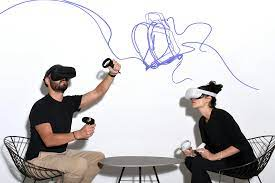
Open Brush is an open source 3D drawing tool. Open Brush lets you paint in 3D space with virtual reality. Unleash your creativity with three-dimensional brush strokes, choosing from a wide palette, of brushes, including stars, light, and even fire. Your room is your canvas. Your palette is your imagination. The possibilities are endless.

</td><td style="height:392.773px;">[![image.png](https://bookstack.hku.nl/uploads/images/gallery/2024-01/scaled-1680-/vdVimage.png)](https://bookstack.hku.nl/uploads/images/gallery/2024-01/vdVimage.png)

<div class="yt-channel-external-link-view-model-wiz__container"><span class="yt-core-attributed-string yt-channel-external-link-view-model-wiz__title yt-core-attributed-string--ellipsis-truncate" dir="auto">https://</span><span class="yt-core-attributed-string yt-channel-external-link-view-model-wiz__link yt-core-attributed-string--ellipsis-truncate yt-core-attributed-string--link-inherit-color" dir="auto">[gravitysketch.com](https://www.youtube.com/redirect?event=channel_description&redir_token=QUFFLUhqbGdlRkJfR19SX0xiNjVxTVhGYnpSMTdWbVRXZ3xBQ3Jtc0trZnE5NVlvN0s4RVBRdk5LZlphSWhhdWd4aUZyWmhRc0tEbnBBSms0ZjZ0VDdhcHhBTW9jUnljVS1uU1o2V0lQUDZpRmlsVUVwWHJYT0Y4NTc4SFNvN0VvNERuVXFVRU9ZMU43ZW5wQjNIdFFoNHN6UQ&q=https%3A%2F%2Fwww.gravitysketch.com%3Futm_source%3Dorg_social%26utm_medium%3Dyoutube)</span></div><div class="yt-channel-external-link-view-model-wiz__container">  
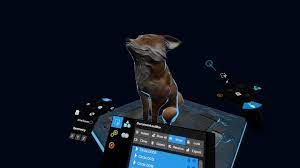
</div><div class="yt-channel-external-link-view-model-wiz__container">Gravity Sketch is the design platform for teams that create, collaborate, and review in 3D. Express your 3D ideas in real-time, at any scale, from initial concepts through to detailed 3D models using an extensive array of tools for creative exploration. </div>on computer, Vr set &amp; ipad.

[tutorials](https://www.youtube.com/@GravitySketchYouTube/playlists)

</td></tr><tr style="height:29.7969px;"><td style="height:29.7969px;">[![image.png](https://bookstack.hku.nl/uploads/images/gallery/2024-01/scaled-1680-/6lYimage.png)](https://bookstack.hku.nl/uploads/images/gallery/2024-01/6lYimage.png)

[https://shapelabvr.com/](https://shapelabvr.com/)

High 3D sculpting in VR, not free

[tutorials](https://www.youtube.com/@ShapeLabVR)

</td><td style="height:29.7969px;">  
</td></tr><tr style="height:29.7969px;"><td style="height:29.7969px;">  
</td><td style="height:29.7969px;">  
</td></tr><tr style="height:29.7969px;"><td style="height:29.7969px;">  
</td><td style="height:29.7969px;">  
</td></tr></tbody></table>

# VR Sketch (use with Sketchup VR)

You can view your model in VR and experience it lifesize!

on the meta site: [Viewer for Meta Quest | SketchUp Help](https://help.sketchup.com/en/sketchup-viewer/meta-quest)

quickstart

- [Signing In To SketchUp](https://help.sketchup.com/en/meta-quest/signing-in) - Sign in to get started with SketchUp in VR.
- [SketchUp Home Screen](https://help.sketchup.com/en/meta-quest/home-screen) - Take a tour and get to know the Home Screen.
- [Opening and Closing a Model](https://help.sketchup.com/en/meta-quest/opening-and-closing-model) - Open a model and start exploring your work in VR.
- [Move, Rotate, and Scale](https://help.sketchup.com/en/meta-quest/moving-rotating-and-scaling) - Learn about navigating and manipulating how your model appears in VR.
- [Tools for Quest](https://help.sketchup.com/en/meta-quest/tools) - An overview of the tools available to you and how to use them.
- [Cast to SketchUp Viewer](https://help.sketchup.com/en/meta-quest/cast-to-viewer) - Cast your model from SketchUp Viewer to other devices.
- [Recording Your Session](https://help.sketchup.com/en/meta-quest/recording-your-session) - Learn how to record your SketchUp Viewer session so you can share it later.