# How to Rokoko

<p class="callout danger">important: NEVER firmware-update any part of the suit without prior contact with the Blackbox!</p>

[![image.png](https://bookstack.hku.nl/uploads/images/gallery/2025-05/scaled-1680-/image.png)](https://bookstack.hku.nl/uploads/images/gallery/2025-05/image.png)

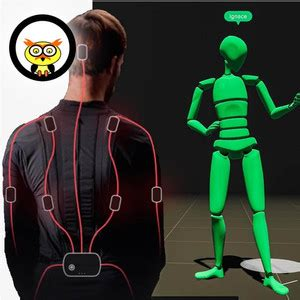
The **Rokoko SmartSuit Pro** is a **wireless motion capture suit** that tracks full-body movement in real time. It's made up of sensors placed around the body, allowing you to **capture the motion of a performer** and translate it into digital animations..

#### What do you need to use it?

- Rokoko suit (textile &amp; sensors, check the Blackbox)
- powerbank
- advised: standalone router (remember: in HKU you can never plug a router into the LAN network, standalone use only!!!)
- computer (preferably with utp to the router &amp; wifi for internet\*)
- optional: Rokoko Gloves
- Rokoko studio software (windows &amp; mac): [https://www.rokoko.com/products/studio/download](https://www.rokoko.com/products/studio/download)

#### How to setup (steps)
![Screenshot 2025-05-20 at 14.40.13.png](https://bookstack.hku.nl/uploads/images/gallery/2025-05/scaled-1680-/screenshot-2025-05-20-at-14-40-13.png)

1. Open Rokoko studio
2. Create a Rokoko ID (in the studio, but directs youto the browser)
3. Create a Project &amp; Scene
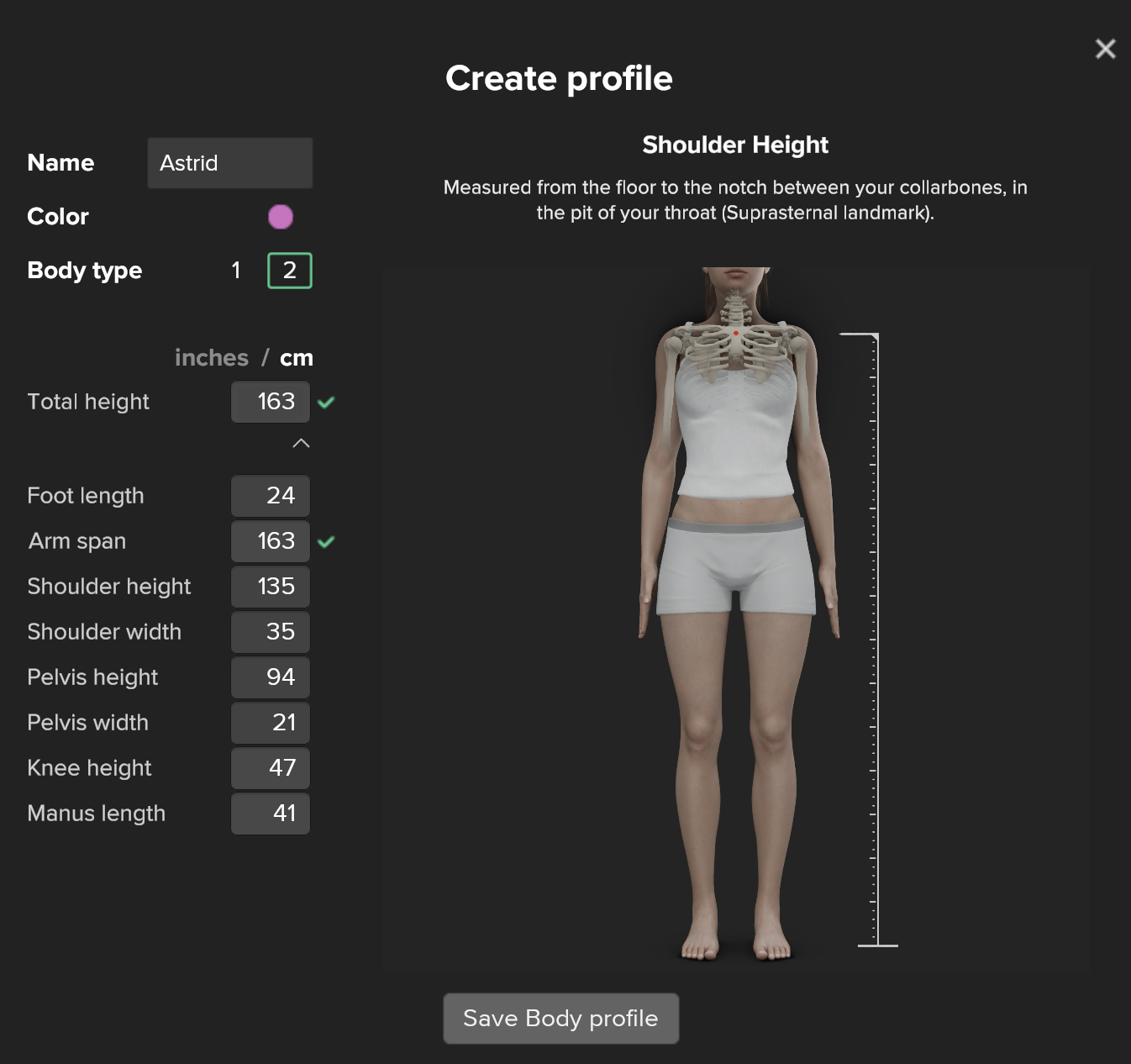
4. Create an Avatar, with your sizes (rough estimates can work measuring is better)
5. Connect the Smartsuit to the computer. Use the provided USB-C cable &amp; connect to the sensor on the back of the suit.
6. [![Screenshot 2025-05-20 at 14.57.30.png](https://bookstack.hku.nl/uploads/images/gallery/2025-05/scaled-1680-/screenshot-2025-05-20-at-14-57-30.png)](https://bookstack.hku.nl/uploads/images/gallery/2025-05/screenshot-2025-05-20-at-14-57-30.png)

    
    Select the second icon to connect to your device (smartsuit)  
    (<span class="docData;DOCY;v5;1636;BQiAAgAAEYQCAAAGiAIAAANiBQAABXAFAAAAAAAAAAAAAAAAAAAAAAAAAAAAAAAAAAAAAAAAAAAAAAAAAAAAAAAAAAAAAAAAAAAAAAAAAAAAAAAAAAAAAAAAAAAAAAAAAAAAAAAAAAAAAAAAAAAAAAAAAAAAAAAAAAAAAAAAAAAAAAAAAAAAAAAAAAAAAAAAAAAAAAAAAAAAAAAAAAAAAAAAAAAAAAAAAAAAAAAAAAAAAAAAAAAAAAAAAAAAAAAAAAAAAAAAAAAAAAAAAAAAAAAAAAAAAAAAAAAAAAAAAAAAAAAAAAAAAAAAAAAAAAAAAAAAAAAAAAAAAAAAAAAAAAAAAAAAAAAAAAAAAAAAAAAAAAAAAAAAAAAAAAAAAAAAAAAAAAAAAAAAAAAAAAAAAAAAAAAAAAAAAAAAAAAAAAAAAAAAAAAAAAAAAAAAAAAAAAAAAAAAAAAAAAAAAAAAAAAAAAAAAAAAAAAAAAAAAAAAAAAAAAAAAAAAAAAAAAAAAAAAAAAAAAAAAAAAAAAAAAAAAAAAAAAAAAAAAAAAAAAAAAAAAAAAAAAAAAAAAAAAAAAAAAAAAAAAAAAAAAAAAAAAAAAAAAAAAAAAAAAAAAAAAAAAAAAAAAAAAAAAAAAAAAAAAAAAAAAAAAAAAAAAAAAAAAAAAAAAAAAAAAAAAAAAAAAAAAAAAAAAAAAAAAAAAAAAAAAAAAAAAAAAAAAAAAAAAAAAAAAAAAAAAAAAAAAAAAAAAAAAAAAAAAAAAAAAAAAAAAAAAAAAAAAAAAAAAAAAAAAAAAAAAAAAAAAAAAAAAAAAAAAAAAAAAAAAAAAAAAAAAAAAAAAAAAAAAAAAAAAAAAAAAAAA1gIAAADRAgAAARsAAAABBgAAAAAJBgAAAAAaBgMAAAAMAQAbBgAAAAACrAIAAAVMAAAAAQMAAAAMAQAIPwAAAAA6AAAASQBmACAAdABoAGUAIABzAHUAaQB0ACAAZABvAGUAcwAgAG4AbwB0ACAAYQBwAHAAZQBhAHIALAAgAArsAQAAAdQAAABoAHQAdABwAHMAOgAvAC8AcwB1AHAAcABvAHIAdAAuAHIAbwBrAG8AawBvAC4AYwBvAG0ALwBoAGMALwBlAG4ALQB1AHMALwBhAHIAdABpAGMAbABlAHMALwA0ADQAMQAwADQANwAwADgANwA2ADYAOAA5AC0AUwBtAGEAcgB0AHMAdQBpAHQALQBQAHIAbwAtAGkAcwAtAG4AbwB0AC0AYQBwAHAAZQBhAHIAaQBuAGcALQBpAG4ALQBSAG8AawBvAGsAbwAtAFMAdAB1AGQAaQBvAAPUAAAAaAB0AHQAcABzADoALwAvAHMAdQBwAHAAbwByAHQALgByAG8AawBvAGsAbwAuAGMAbwBtAC8AaABjAC8AZQBuAC0AdQBzAC8AYQByAHQAaQBjAGwAZQBzAC8ANAA0ADEAMAA0ADcAMAA4ADcANgA2ADgAOQAtAFMAbQBhAHIAdABzAHUAaQB0AC0AUAByAG8ALQBpAHMALQBuAG8AdAAtAGEAcABwAGUAYQByAGkAbgBnAC0AaQBuAC0AUgBvAGsAbwBrAG8ALQBTAHQAdQBkAGkAbwAEAQAAAAEALwAAAAUqAAAAAQ8AAAAMAQANBgYAAAA4ADYANwAIEQAAAAAMAAAAYwBoAGUAYwBrACAABTAAAAABAwAAAAwBAAgjAAAAAB4AAAB5AG8AdQByACAAZgBpAHIAZQB3AGEAbABsAHMAIAAFEgAAAAEDAAAADAEACAUAAAAFAAAAAAUKAAAAAQAAAAAIAAAAAAUKAAAACAUAAAANAAAAAAoAAAAAAAAAABEAAAAA8AAAAAAtAAAAAQYAAAAACQYbAAAAJwQUAQAACwEBHAEAKAQAAAAAHQEAKQTIAAAAGwYAAAAAAUsAAAAoAQcpAQcqAQcrAQUTAQEIBBYAAAAWBBYAAAAZBgoAAABlAG4ALQBHAEIAGgYKAAAAYQByAC0AUwBBABsGCgAAAGUAbgAtAFUAUwACaQAAAABkAAAAAQYAAAA4ADYANwACEgAAAEgAeQBwAGUAcgBsAGkAbgBrAAkBAAAAAQsEAAAAYwAAAA4BAAAAAQURAAAAAgEMCQMAAP8cBgMAAAABAQsGEgAAAAEGAAAAAAkGAAAAABsGAAAAAA==">If the suit does not appear, </span>[<u>check </u>](https://support.rokoko.com/hc/en-us/articles/4410470876689-Smartsuit-Pro-is-not-appearing-in-Rokoko-Studio "https://support.rokoko.com/hc/en-us/articles/4410470876689-Smartsuit-Pro-is-not-appearing-in-Rokoko-Studio")your firewalls)
7. Setup the [wifi](https://www.rokoko.com/academy/tutorials) (preferably for the dedicated Router Specs\*\*. )  
    Use the 5ghz option if available.
8. Connect the powerbank &amp; disconnect the Usb-pc cable
9. Connect the actor profile to the device
10. Wear the smartsuit (this step can be done earlier if you are working together)
11. When using the gloves follow steps 5-9 again for each glove. Although the powerbanks we use has 3 outputs, it is preferred to use separate powerbanks for the gloves.

#### <span style="color: rgb(126, 140, 141);">How to record mocap (steps)</span>

1. <span style="color: rgb(126, 140, 141);">Callibrate</span>
2. <span style="color: rgb(126, 140, 141);">Record</span>
3. <span style="color: rgb(126, 140, 141);">Clean data</span>
4. <span style="color: rgb(126, 140, 141);">Export </span>

#### <span style="color: rgb(126, 140, 141);">How to live streaming </span>

<span style="color: rgb(126, 140, 141);">For real-time data streaming you need a license/paid seat.</span>  
<span style="color: rgb(126, 140, 141);">Info &amp; prices: [https://www.rokoko.com/pricing](https://www.rokoko.com/pricing) (set it to per month instead of anual&gt; 28,- euro per month)</span>  
<span style="color: rgb(126, 140, 141);">**Loophole:** Try it out for free: [https://support.rokoko.com/hc/en-us/articles/4410424273169-How-can-I-access-the-free-7-day-trial-of-Studio-Plus-or-Pro](https://support.rokoko.com/hc/en-us/articles/4410424273169-How-can-I-access-the-free-7-day-trial-of-Studio-Plus-or-Pro) </span>  
<span style="color: rgb(126, 140, 141);">For this you need to set up a team ([https://support.rokoko.com/hc/en-us/articles/4410409137297-Creating-a-Rokoko-Team-and-Selecting-a-Subscription-Plan](https://support.rokoko.com/hc/en-us/articles/4410409137297-Creating-a-Rokoko-Team-and-Selecting-a-Subscription-Plan))</span>

\*\* The HKU Rokoko's MacAdress has been added to streaming Vlan so the suit also works in all of HKU &amp; connects to your computer if you place it in streaming Vlan too. Connect with your local Blackbox Employee for help with this ;)

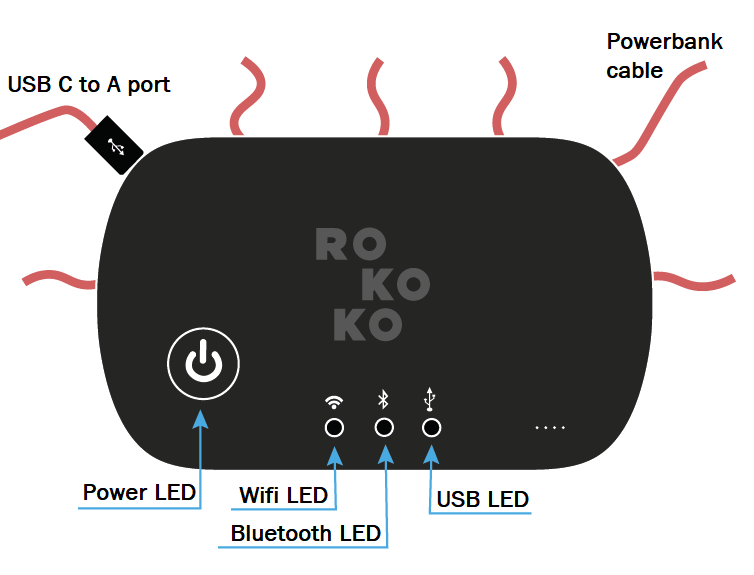
HubLights:

<span data-identifyelement="467"><span data-identifyelement="498" dir="ltr">The sensors light up blue/green before turning off. </span>When your Smartsuit Pro <span data-identifyelement="461" dir="ltr">II </span>sensors are in a normal state they will not be lit when powered on. The only lights that will be on during use will be that of the HUB.</span>

![image.png](https://bookstack.hku.nl/uploads/images/gallery/2025-05/scaled-1680-/KZXimage.png)

<div aria-labelledby="tab-link-30" class="tab" id="bkmrk-power-led-what-does-" role="tabpanel"><table data-identifyelement="615"><thead data-identifyelement="616"><tr data-identifyelement="617"><th data-identifyelement="618">**Power LED**<span class="wysiwyg-underline">  
</span></th><th data-identifyelement="622">What does it mean?<span class="wysiwyg-underline">  
</span></th></tr></thead><tbody data-identifyelement="626"><tr data-identifyelement="627"><td class="wysiwyg-text-align-left" data-identifyelement="628"><span data-identifyelement="629"><span class="wysiwyg-color-red">RED</span></span></td><td data-identifyelement="632"><span data-identifyelement="633">There is a problem communicating with some of the sensors(possibly a broken wire or sensor)  
</span></td></tr><tr data-identifyelement="636"><td class="wysiwyg-text-align-left" data-identifyelement="637"><span class="wysiwyg-color-yellow110">YELLOW</span></td><td data-identifyelement="641"><span data-identifyelement="642"><span data-identifyelement="643" dir="ltr">Failed Redpine initialization  
</span></span></td></tr><tr data-identifyelement="645"><td class="wysiwyg-text-align-left" data-identifyelement="646"><span data-identifyelement="585"><span class="wysiwyg-color-green110">GREEN</span></span></td><td data-identifyelement="650"><span data-identifyelement="651">The power is on! The Smartsuit Pro should be detected in Rokoko Studio in the Device Manager  
</span></td></tr><tr data-identifyelement="654"><td class="wysiwyg-text-align-left" data-identifyelement="655"><span data-identifyelement="656"><span class="wysiwyg-color-black30">OFF</span>  
</span></td><td data-identifyelement="659"><span data-identifyelement="660">Smartsuit is not connected to a battery</span></td></tr></tbody></table>

</div><div aria-labelledby="tab-link-31" class="tab" id="bkmrk-wifi-led%C2%A0-what-does-" role="tabpanel">  
<table data-identifyelement="527" style="width: 53.4568%;"><thead data-identifyelement="528"><tr data-identifyelement="529"><th data-identifyelement="530" style="width: 20.9246%;"><span class="wysiwyg-underline">***WIFI LED*** </span></th><th data-identifyelement="534" style="width: 79.0754%;">What does it mean?<span class="wysiwyg-underline">  
</span></th></tr></thead><tbody data-identifyelement="538"><tr data-identifyelement="539"><td class="fr-highlighted wysiwyg-text-align-left" data-identifyelement="540" style="width: 20.9246%;"><span data-identifyelement="541"><span class="wysiwyg-color-red">RED</span></span></td><td class="fr-highlighted" data-identifyelement="544" style="width: 79.0754%;"><span data-identifyelement="545">A failure has occurred while trying to connect to the network. Please double check your WiFi settings(network/password/IP/Firewall etc) and reach out to <support@rokoko.com> if further assistance is required.</span>

<span data-identifyelement="545">This colour is normal if you have changed computer or network or if this is the first time connecting your Smartsuit Pro to your network</span>

</td></tr><tr data-identifyelement="549"><td class="fr-highlighted wysiwyg-text-align-left" data-identifyelement="550" style="width: 20.9246%;"><span data-identifyelement="551"><span class="wysiwyg-color-blue90"><span class="wysiwyg-color-green110"><span class="wysiwyg-color-pink"><span class="wysiwyg-color-black">BLINKING   
</span></span></span><span class="wysiwyg-color-green110">GREEN</span></span></span></td><td class="fr-highlighted" data-identifyelement="554" style="width: 79.0754%;"><span data-identifyelement="555">The Smartsuit Pro's Wifi function initializes. The Smartsuit Pro is also searching for WiFi  
</span></td></tr><tr data-identifyelement="558"><td class="fr-highlighted wysiwyg-text-align-left" data-identifyelement="559" style="width: 20.9246%;"><span data-identifyelement="560"><span class="wysiwyg-color-green110">GREEN</span></span>

</td><td class="fr-highlighted" data-identifyelement="563" style="width: 79.0754%;">The system is working properly and connected to an access point in the 5GHz band

</td></tr><tr><td class="wysiwyg-text-align-left" style="width: 20.9246%;"><span data-identifyelement="560"><span class="wysiwyg-color-green110"><span class="wysiwyg-color-pink"><span class="wysiwyg-color-black"><span class="wysiwyg-color-blue90">BLUE</span></span></span></span>  
</span>

</td><td style="width: 79.0754%;"><span data-identifyelement="555">The system is working properly and connected to an access point in the 2.4GHz band</span>

</td></tr><tr><td class="wysiwyg-text-align-left" style="width: 20.9246%;"><span class="wysiwyg-color-yellow110">YELLOW</span>

</td><td style="width: 79.0754%;"><span data-identifyelement="555">The system is working properly and connected to an access point in the Dual band mode  
</span>

</td></tr><tr><td class="wysiwyg-text-align-left" style="width: 20.9246%;"><span data-identifyelement="560"><span class="wysiwyg-color-green110"><span class="wysiwyg-color-pink"><span class="wysiwyg-color-black">BLINKING</span> PURPLE</span></span></span>

</td><td style="width: 79.0754%;">The Smartsuit Pro's Hotspot is being initialized

</td></tr><tr><td class="wysiwyg-text-align-left" style="width: 20.9246%;"><span data-identifyelement="560"><span class="wysiwyg-color-green110"><span class="wysiwyg-color-pink">PURPLE</span></span></span>

</td><td style="width: 79.0754%;"><span data-identifyelement="555">The device is being connected to the PC via the Hub Hotspot</span>

</td></tr></tbody></table>

 </div><div aria-labelledby="tab-link-30" class="tab" id="bkmrk--3" role="tabpanel"></div>#### Issues &amp; Troubleshooting

- **<span class="docData;DOCY;v5;1636;BQiAAgAAEYQCAAAGiAIAAANiBQAABXAFAAAAAAAAAAAAAAAAAAAAAAAAAAAAAAAAAAAAAAAAAAAAAAAAAAAAAAAAAAAAAAAAAAAAAAAAAAAAAAAAAAAAAAAAAAAAAAAAAAAAAAAAAAAAAAAAAAAAAAAAAAAAAAAAAAAAAAAAAAAAAAAAAAAAAAAAAAAAAAAAAAAAAAAAAAAAAAAAAAAAAAAAAAAAAAAAAAAAAAAAAAAAAAAAAAAAAAAAAAAAAAAAAAAAAAAAAAAAAAAAAAAAAAAAAAAAAAAAAAAAAAAAAAAAAAAAAAAAAAAAAAAAAAAAAAAAAAAAAAAAAAAAAAAAAAAAAAAAAAAAAAAAAAAAAAAAAAAAAAAAAAAAAAAAAAAAAAAAAAAAAAAAAAAAAAAAAAAAAAAAAAAAAAAAAAAAAAAAAAAAAAAAAAAAAAAAAAAAAAAAAAAAAAAAAAAAAAAAAAAAAAAAAAAAAAAAAAAAAAAAAAAAAAAAAAAAAAAAAAAAAAAAAAAAAAAAAAAAAAAAAAAAAAAAAAAAAAAAAAAAAAAAAAAAAAAAAAAAAAAAAAAAAAAAAAAAAAAAAAAAAAAAAAAAAAAAAAAAAAAAAAAAAAAAAAAAAAAAAAAAAAAAAAAAAAAAAAAAAAAAAAAAAAAAAAAAAAAAAAAAAAAAAAAAAAAAAAAAAAAAAAAAAAAAAAAAAAAAAAAAAAAAAAAAAAAAAAAAAAAAAAAAAAAAAAAAAAAAAAAAAAAAAAAAAAAAAAAAAAAAAAAAAAAAAAAAAAAAAAAAAAAAAAAAAAAAAAAAAAAAAAAAAAAAAAAAAAAAAAAAAAAAAAAAAAAAAAAAAAAAAAAAAAAAAAAA1gIAAADRAgAAARsAAAABBgAAAAAJBgAAAAAaBgMAAAAMAQAbBgAAAAACrAIAAAVMAAAAAQMAAAAMAQAIPwAAAAA6AAAASQBmACAAdABoAGUAIABzAHUAaQB0ACAAZABvAGUAcwAgAG4AbwB0ACAAYQBwAHAAZQBhAHIALAAgAArsAQAAAdQAAABoAHQAdABwAHMAOgAvAC8AcwB1AHAAcABvAHIAdAAuAHIAbwBrAG8AawBvAC4AYwBvAG0ALwBoAGMALwBlAG4ALQB1AHMALwBhAHIAdABpAGMAbABlAHMALwA0ADQAMQAwADQANwAwADgANwA2ADYAOAA5AC0AUwBtAGEAcgB0AHMAdQBpAHQALQBQAHIAbwAtAGkAcwAtAG4AbwB0AC0AYQBwAHAAZQBhAHIAaQBuAGcALQBpAG4ALQBSAG8AawBvAGsAbwAtAFMAdAB1AGQAaQBvAAPUAAAAaAB0AHQAcABzADoALwAvAHMAdQBwAHAAbwByAHQALgByAG8AawBvAGsAbwAuAGMAbwBtAC8AaABjAC8AZQBuAC0AdQBzAC8AYQByAHQAaQBjAGwAZQBzAC8ANAA0ADEAMAA0ADcAMAA4ADcANgA2ADgAOQAtAFMAbQBhAHIAdABzAHUAaQB0AC0AUAByAG8ALQBpAHMALQBuAG8AdAAtAGEAcABwAGUAYQByAGkAbgBnAC0AaQBuAC0AUgBvAGsAbwBrAG8ALQBTAHQAdQBkAGkAbwAEAQAAAAEALwAAAAUqAAAAAQ8AAAAMAQANBgYAAAA4ADYANwAIEQAAAAAMAAAAYwBoAGUAYwBrACAABTAAAAABAwAAAAwBAAgjAAAAAB4AAAB5AG8AdQByACAAZgBpAHIAZQB3AGEAbABsAHMAIAAFEgAAAAEDAAAADAEACAUAAAAFAAAAAAUKAAAAAQAAAAAIAAAAAAUKAAAACAUAAAANAAAAAAoAAAAAAAAAABEAAAAA8AAAAAAtAAAAAQYAAAAACQYbAAAAJwQUAQAACwEBHAEAKAQAAAAAHQEAKQTIAAAAGwYAAAAAAUsAAAAoAQcpAQcqAQcrAQUTAQEIBBYAAAAWBBYAAAAZBgoAAABlAG4ALQBHAEIAGgYKAAAAYQByAC0AUwBBABsGCgAAAGUAbgAtAFUAUwACaQAAAABkAAAAAQYAAAA4ADYANwACEgAAAEgAeQBwAGUAcgBsAGkAbgBrAAkBAAAAAQsEAAAAYwAAAA4BAAAAAQURAAAAAgEMCQMAAP8cBgMAAAABAQsGEgAAAAEGAAAAAAkGAAAAABsGAAAAAA==">Suit not appearing in manager?</span>**
    - [<u>check </u>](https://support.rokoko.com/hc/en-us/articles/4410470876689-Smartsuit-Pro-is-not-appearing-in-Rokoko-Studio "https://support.rokoko.com/hc/en-us/articles/4410470876689-Smartsuit-Pro-is-not-appearing-in-Rokoko-Studio")your firewalls
    - disableantivirus software
- **No legs?**
    
    
    - If part of the sensors stop working: Disconnect Batterypack, wait 30 secs &amp; reconnect to wifi
- **Hub light off or red?**
    
    
    - Check the **charging cable and port**.
    - If the hub still doesn’t respond, try a **hard reset** by holding the power button for 10+ seconds.
- **Magnet interference?**
    
    
    - Avoid standing near **large metal objects** or **electronics** during calibration. (see if the sensors are green in the software)

#### useful links:

- video tutorials Rokoko: [https://www.youtube.com/@RokokoMotion/playlists](https://www.youtube.com/@RokokoMotion/playlists) &amp; [https://www.rokoko.com/academy/tutorials](https://www.rokoko.com/academy/tutorials)
- compatible software &amp; plugins for realtime intergration: [https://www.rokoko.com/integrations](https://www.rokoko.com/integrations)
- \* [https://support.apple.com/en-gb/guide/mac-help/mchlp2711/mac](https://support.apple.com/en-gb/guide/mac-help/mchlp2711/mac) prioritise the order of connection-service on mac