# Mixed Reality
This book is the home for all AR, VR, MR knowledge regarding different soft- and hardware
# Meta Quest 2 tips&tricks
### Oculus Passthrough Tutorial Overview
This tutorial guides you through the process of setting up passthrough functionality for Oculus devices in a Unity 3D project. Passthrough allows users to see real-world surroundings through the device's cameras, enhancing the mixed reality experience. Here's a breakdown of the steps:
### Step 1: Begin with a New 3D Project
Start by creating a new 3D project in Unity. This will serve as the foundation for integrating Oculus passthrough features.
### Step 2: Import SDK from Oculus
1. Go to the [Oculus Developer Center](https://developer.oculus.com/) and download the necessary SDK.
2. Open Unity and your new project.
3. Navigate to **Assets > Import Package > Custom Package**.
4. Locate and select the downloaded .unitypackage file, then click **Import**.
5. When prompted to update the Oculus Utilities plugin, click **Yes** to ensure compatibility.
Note: If asked to use OpenXR as the backend, click **Use OpenXR**. This is necessary for the Oculus XR Plugin to work with the Oculus Utilities Plugin.
6. If prompted to clean up old Interaction SDK assets, click **Show Assets**, then **Delete Assets**.
7. If prompted to update Spatializer plugins, click **Upgrade**, and then click **Restart**.
### Follow the Passthrough Tutorial
Continue with the Oculus Passthrough tutorial available [here](https://developer.oculus.com/documentation/unity/unity-passthrough-tutorial/). This tutorial provides detailed steps on implementing passthrough functionality in your Unity project.
### Additional Resources
- For support and community discussions, refer to the [Unity Forum thread](https://forum.unity.com/threads/how-do-i-get-the-oculus-quest-2-to-work-in-the-unity-editor.1112443/).
### XR Plugins Management
In Unity's XR Plugin Management, make sure to enable the Oculus checkbox under the PC platform settings. This ensures that your project integrates with Oculus devices correctly. This setting is crucial for XR functionality on Oculus platforms.
By following these steps and consulting the provided resources, you should be able to successfully set up Oculus passthrough in your Unity 3D project.
### Sources:
#### Build VR for Quest / PC
- [Tutorial Video](https://www.youtube.com/watch?v=pNYY1JsS7tY) (tutorial going through the process of building on Quest and PC)
- [Circuit Stream Blog](https://circuitstream.com/blog/oculus-quest-unity-setup) (very simple has the basics but old!)
#### Passthrough Quest
- [Tutorial Video - Standalone](https://www.youtube.com/watch?v=RtoTGYBdGI4) (for running standalone on Quest)
- [Tutorial Video](https://www.youtube.com/watch?v=9u3QQi6Gnx0)
- [Forum Post](https://communityforums.atmeta.com/t5/PCVR-Development/Is-it-possible-to-access-the-passthrough-camera-feed/td-p/748893) (Forum post pointing to the API doc)
- [API Reference](https://developer.oculus.com/documentation/unity/unity-passthrough/) (api reference)
#### PassThrough via link
- [GitHub Repository](https://github.com/Unity-Technologies/mr-example-meta-openxr) (does not currently work with OpenXR)
#### PassThrough Tutorials
- [Part 1 Tutorial Video](https://www.youtube.com/watch?v=9u3QQi6Gnx0)
- [Part 2 Tutorial Video](https://www.youtube.com/watch?v=siGdoW1_bLw)
- [Part 3 Tutorial Video](https://www.youtube.com/watch?v=DWCPWVRJSa8)
#### Quest 2 OSX
- [Blog - Developing for Oculus Quest 2 with MacBook Pro 16](https://dbbd.sg/blog/2022/05/developing-for-oculus-quest-2-in-unity-with-macbook-pro-16/) (basics, maar niet erg informatief)
#### Oculus Rift
- [Circuit Stream Blog](https://circuitstream.com/blog/oculus-unity-setup)
# Using Vive without the headset for positional tracking
In this setup we are using Vive Trackers in combination with multiple base stations (max 16!) to tracking positional data XYZ
Working without the headset seems less heavy on the GPU & the tracking seems a little more stable.
What you would usually see when connecting the headset & base-stations, in SteamVR: [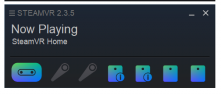](https://bookstack.hku.nl/uploads/images/gallery/2024-03/QRGimage.png)
1\. Before adapting the files make sure the headset is disconnected/off.
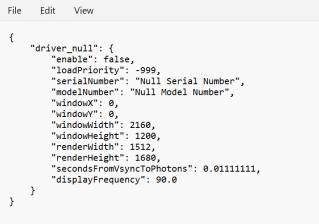
2\. Look up (make a copy as a backup...) & adjust the following files in explorer:
C:\\Program Files (x86)\\Steam\\steamapps\\common\\SteamVR\\drivers\\null\\resources\\settings
'default.vrsettings'
(open in texteditor)
[](https://bookstack.hku.nl/uploads/images/gallery/2024-03/8Meimage.png)
When usings the headset **"*****enable" : false,*** (standard setting)
so to not use the headset change this to ***"enable": true,***
Save the file!
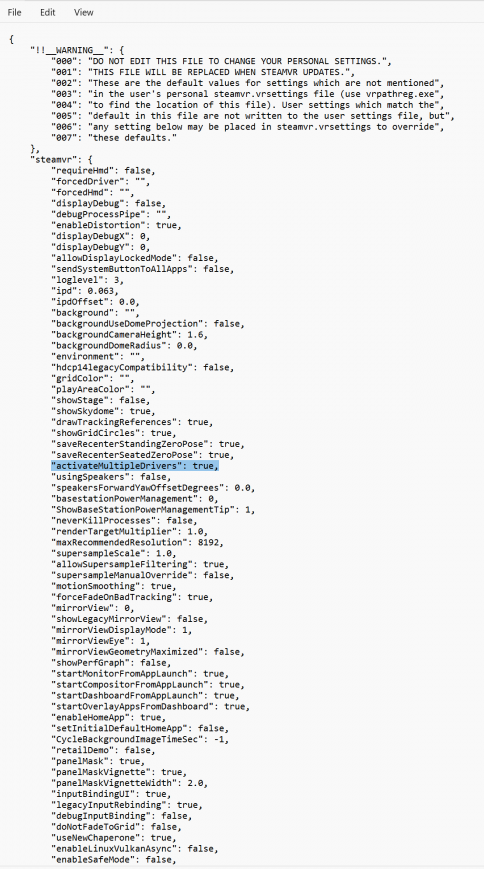
C:\\Program Files (x86)\\Steam\\steamapps\\common\\SteamVR\\resources\\settings
'default.vrsettings'
(open in texteditor)
[](https://bookstack.hku.nl/uploads/images/gallery/2024-03/TcXimage.png)
When usings the headset ***"requireHmd": true,*** (standard setting) & ***"activateMultipleDrivers": false,** (standard settings)* so to not use the headset change this to ***"requireHmd": false,*** & ***"activateMultipleDrivers": true,***
Save the file!
3\. Connect and turn on your headset.
Tracking is enabled, but your headset has no visual output. You should see this:
[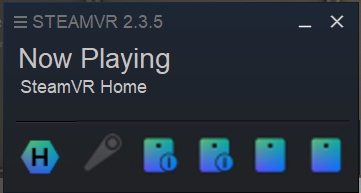](https://bookstack.hku.nl/uploads/images/gallery/2024-03/steamvr-no-headset.png)
Remember! If you are using a shared headset in a space like the Blackbox or borrowed one from the loan, to ALWAYS reset these settings, so the headset can be used as expected.