# Receive data from Arduino in Isadora

**Isadora settings**

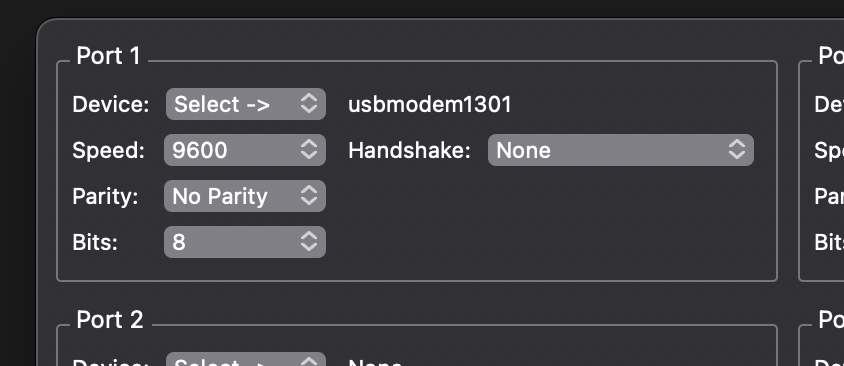
Communications:&gt; Serial port setup  
Port 1  
Device: select -&gt; usbmodem

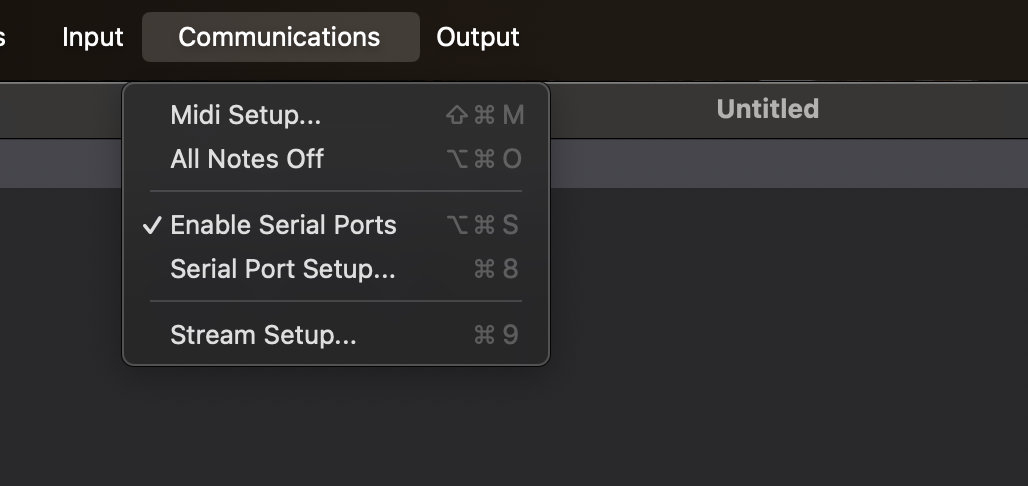
Communications&gt;  
Enable serial ports

[![Screenshot 2025-01-14 at 10.52.26.png](https://bookstack.hku.nl/uploads/images/gallery/2025-01/scaled-1680-/screenshot-2025-01-14-at-10-52-26.png)](https://bookstack.hku.nl/uploads/images/gallery/2025-01/screenshot-2025-01-14-at-10-52-26.png) [![Screenshot 2025-01-14 at 10.51.58.png](https://bookstack.hku.nl/uploads/images/gallery/2025-01/scaled-1680-/screenshot-2025-01-14-at-10-51-58.png)](https://bookstack.hku.nl/uploads/images/gallery/2025-01/screenshot-2025-01-14-at-10-51-58.png)[ ](https://bookstack.hku.nl/uploads/images/gallery/2025-01/screenshot-2025-01-14-at-10-52-26.png)
**NB!** If you have this on, close the serial monitor in Arduino,  
If the serial monitor is on, Isadora cannot connect to the Arduino.  
This also works the other way around. If you want to adjust your code in Arduino and you want to test the code, you must turn off the serial monitor in Isadora.

**Open serial monitor in isadora:**  
windows &gt; show monitor  
Here you can see that the data is coming in from the Arduino. On the far right you can see that the value changes from 0 to 400(or more depending on the sensor). The serial monitor is for monitoring purposes only. You can turn it off when you see that the connection works.  
  
In the Serial in watcher actor you see that the value changing. You can use that output for your patch.

#### Example with 3 LDR light sensors + code

A sensor usually outputs a range of data. In that case use the Serial in watcher - Text

[![Screenshot 2026-06-02 at 12.18.15.png](https://bookstack.hku.nl/uploads/images/gallery/2026-06/scaled-1680-/screenshot-2026-06-02-at-12-18-15.png)](https://bookstack.hku.nl/uploads/images/gallery/2026-06/screenshot-2026-06-02-at-12-18-15.png)  
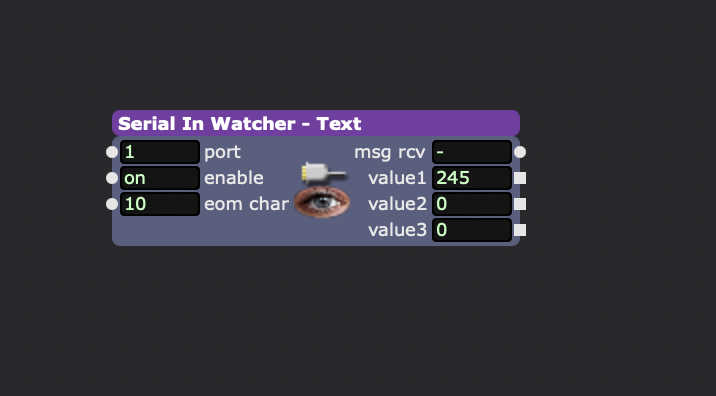
  
open the actor by double klikking it and fill in this code : **value:int=eol**  
in actor put **eom** **char** on **10**

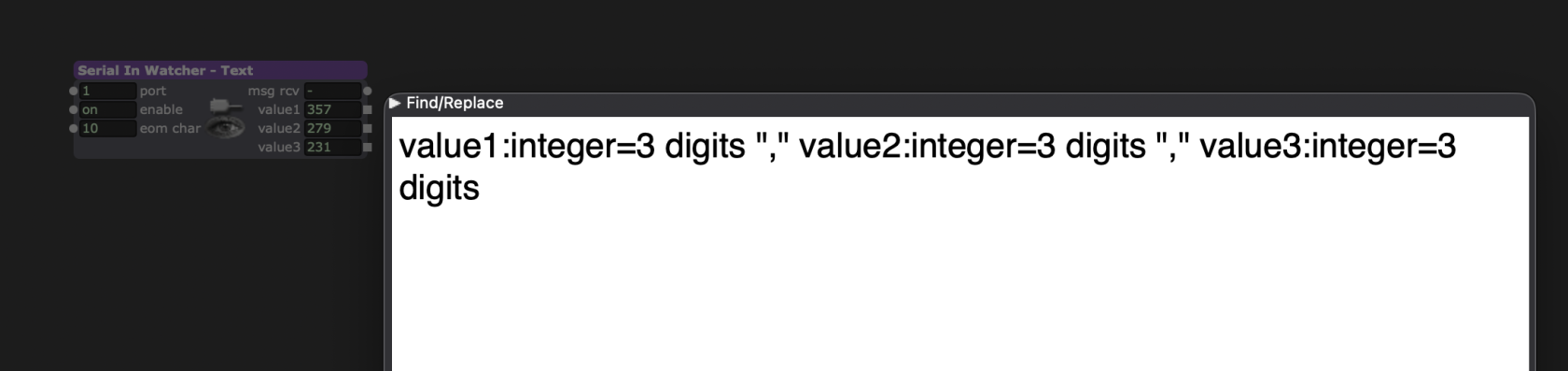
Double click on the actor and fill in : value1:integer=3 digits "," value2:integer=3 digits "," value3:integer=3 digits

[![Screenshot 2026-06-02 at 14.33.42.png](https://bookstack.hku.nl/uploads/images/gallery/2026-06/scaled-1680-/screenshot-2026-06-02-at-14-33-42.png)](https://bookstack.hku.nl/uploads/images/gallery/2026-06/screenshot-2026-06-02-at-14-33-42.png)
[you could folow this tutorial](https://www.youtube.com/watch?v=XwJQJnY6iUs) for connecting the LDR sensor

**I used this arduino code for 3 LDR light sensors:**

<div id="bkmrk-void-setup%28%29-%7B-seria" style="color: #dae3e3; background-color: #1f272a; font-family: Menlo, Monaco, 'Courier New', monospace; font-weight: normal; font-size: 12px; line-height: 18px; white-space: pre;"><div><span style="color: #0ca1a6;">void</span><span style="color: #dae3e3;"> </span><span style="color: #f39c12;">setup</span><span style="color: #dae3e3;">() {</span></div><div><span style="color: #f39c12;">Serial</span><span style="color: #dae3e3;">.</span><span style="color: #f39c12;">begin</span><span style="color: #dae3e3;">(</span><span style="color: #7fcbcd;">9600</span><span style="color: #dae3e3;">);</span><span style="color: #7f8c8d;"> // Start seriële communicatie</span></div><div><span style="color: #dae3e3;">}</span></div><div><span style="color: #0ca1a6;">void</span><span style="color: #dae3e3;"> </span><span style="color: #f39c12;">loop</span><span style="color: #dae3e3;">() {</span></div><div><span style="color: #0ca1a6;">int</span><span style="color: #dae3e3;"> ldr1 = </span><span style="color: #f39c12;">analogRead</span><span style="color: #dae3e3;">(A0);</span></div><div><span style="color: #0ca1a6;">int</span><span style="color: #dae3e3;"> ldr2 = </span><span style="color: #f39c12;">analogRead</span><span style="color: #dae3e3;">(A1);</span></div><div><span style="color: #0ca1a6;">int</span><span style="color: #dae3e3;"> ldr3 = </span><span style="color: #f39c12;">analogRead</span><span style="color: #dae3e3;">(A2);</span></div>  
<div><span style="color: #dae3e3;"> </span><span style="color: #f39c12;">Serial</span><span style="color: #dae3e3;">.</span><span style="color: #f39c12;">print</span><span style="color: #dae3e3;">(</span><span style="color: #7fcbcd;">"value1="</span><span style="color: #dae3e3;">);</span></div><div><span style="color: #f39c12;">Serial</span><span style="color: #dae3e3;">.</span><span style="color: #f39c12;">print</span><span style="color: #dae3e3;">(ldr1);</span></div><div><span style="color: #f39c12;">Serial</span><span style="color: #dae3e3;">.</span><span style="color: #f39c12;">print</span><span style="color: #dae3e3;">(</span><span style="color: #7fcbcd;">" value2="</span><span style="color: #dae3e3;">);</span></div><div><span style="color: #f39c12;">Serial</span><span style="color: #dae3e3;">.</span><span style="color: #f39c12;">print</span><span style="color: #dae3e3;">(ldr2);</span></div><div><span style="color: #f39c12;">Serial</span><span style="color: #dae3e3;">.</span><span style="color: #f39c12;">print</span><span style="color: #dae3e3;">(</span><span style="color: #7fcbcd;">" value3="</span><span style="color: #dae3e3;">);</span></div><div><span style="color: #f39c12;">Serial</span><span style="color: #dae3e3;">.</span><span style="color: #f39c12;">println</span><span style="color: #dae3e3;">(ldr3);</span></div>  
<div><span style="color: #dae3e3;"> </span><span style="color: #f39c12;">delay</span><span style="color: #dae3e3;">(</span><span style="color: #7fcbcd;">100</span><span style="color: #dae3e3;">);</span></div><div><span style="color: #dae3e3;">}</span></div></div><div id="bkmrk--3"></div><div id="bkmrk--5"></div>### Example file:

<div id="bkmrk--6"></div><div id="bkmrk-download-isadora-exa">download Isadora example file:</div><div id="bkmrk-arduino-sensors-ldr.">[Arduino sensors LDR.izz](https://bookstack.hku.nl/attachments/142)</div><div id="bkmrk--7"></div><div id="bkmrk-touchdesigner-tutori">**Touchdesigner tutorial: https://www.youtube.com/watch?v=4dO7Q5oQbRg**</div>