# Photogrammetry
Photogrammetry is a technique through which you can extract 3D information from photographs. By extensively photographing an object from all sides, you can use software like Polycam or Abound to create a 3D mesh from these photo's. This mesh can then be imported into 3D software like Blender, and can be rendered using the photo's as textures.
# Polycam
Polycam is an app that can use photogrammetry, gaussian splatting and LiDaR (with apple iPad/iPhone Pro models) to make 3D captures. It can be used for free and paid. The free version offers 20 object scans with a maximum of 100 images per capture. It also offers a free gaussian splatting tool. The paid version has unlimited scans and images per capture. Here's an overview of functions, both free and paid: [https://poly.cam/pricing](https://poly.cam/pricing)
Unlike in other software, the Polycam app helps you make scans. While you are circling around an object, the app takes photos for you and tells you when to slow down. It also shows you how much photos you have left. When in LiDaR mode, it overlays and previews the mesh that its building in real time. After you're done capturing, it uploads your images to Polycam where it builds your scans. You can view and download them online.
**In general, use LiDaR when scanning spaces or environments and use photogrammetry for objects. Gaussian splats may work in scenarios where the object you're scanning has specular, fuzzy or translucent qualities. It is harder to convert into a mesh, however.** A short description of when to use LiDaR vs Photogrammetry can be found here: [https://www.youtube.com/watch?v=gZ6AWrzIx6c&list=PLqnRz-4Awhm7MXTpkgq9paJLC3ONJEBUX&index=1](https://www.youtube.com/watch?v=gZ6AWrzIx6c&list=PLqnRz-4Awhm7MXTpkgq9paJLC3ONJEBUX&index=1)
**Working with LiDaR, photogrammetry and guanssian splatting in Polycam:**
Here's a tutorial detailing how to work with LiDaR in Polycam: [https://learn.poly.cam/hc/en-us/articles/27419935601940-Creating-LiDAR-Captures](https://learn.poly.cam/hc/en-us/articles/27419935601940-Creating-LiDAR-Captures)
For photogrammetry, see this tutorial: [https://learn.poly.cam/hc/en-us/articles/27425185907348-Creating-Photogrammetry-Captures-in-Object-Mode](https://learn.poly.cam/hc/en-us/articles/27425185907348-Creating-Photogrammetry-Captures-in-Object-Mode)
And for Gaussian splatting: [https://learn.poly.cam/hc/en-us/articles/27740818315668-How-to-Create-Gaussian-splats-on-Polycam-mobile](https://learn.poly.cam/hc/en-us/articles/27740818315668-How-to-Create-Gaussian-splats-on-Polycam-mobile)
**Taking your scans into other software**
If you want to process your scans into software like blender or unity, Polycam has great tutorials on these topics on YouTube.
Blender: [https://www.youtube.com/watch?v=1HxJiwihi6g&list=PLqnRz-4Awhm7MXTpkgq9paJLC3ONJEBUX&index=9&t=105s](https://www.youtube.com/watch?v=1HxJiwihi6g&list=PLqnRz-4Awhm7MXTpkgq9paJLC3ONJEBUX&index=9&t=105s)
Unity: [https://www.youtube.com/watch?v=DEbDsxETQuE&list=PLqnRz-4Awhm7MXTpkgq9paJLC3ONJEBUX&index=14](https://www.youtube.com/watch?v=DEbDsxETQuE&list=PLqnRz-4Awhm7MXTpkgq9paJLC3ONJEBUX&index=14)
Find more software use cases here: [https://www.youtube.com/playlist?list=PLqnRz-4Awhm7MXTpkgq9paJLC3ONJEBUX](https://www.youtube.com/playlist?list=PLqnRz-4Awhm7MXTpkgq9paJLC3ONJEBUX)
# Abound
Abound werkt in browser (dus beschikbaar voor mac & windows) met een limiet van 20 Photo Scans & 100 images per scan.
# RealityScan
RealityScan (previously Reality Capture) is software used for photogrammetry. RealityScan offers a mobile app for iPhone and Android and software for desktop that’s only available for Windows. Both are free to use.
Pros and cons of mobile vs desktop
Mobile:
- Fast results, but less options
- IOS and Android
- Limit of 250 photo scans
- Realtime feedback - See where you took the photo in the space, which photo is good or bad, where your model needs more detail
- Data is not processed on your phone, but sent to the cloud - this is faster than if the data would be processed on your phone, but your data will be stored on Epic Games’ servers. This adds certain privacy concerns.
Desktop:
- Windows
- Processing on PC, not on cloud
- Limit of 100.000 photo scans
- AI masking, aerial LiDAR support
To start using the desktop app you have to download the Epic Games Launcher.From there, navigate to RealityScan, and download and install.
# Tools to aid in photogrammetry
Circular polarisation filters
Anti-reflective coating spray
# Gaussian Splatting: online and local
> This is an experiment in progress. **Current status:** We've succeeded in fully generating the splat from the Blender interface, on Windows. See option 1 Sky Splat below.
Gaussian splatting offers an interesting alternative to photogrammetry for specific use cases, particularly where real-time rendering, photorealistic results, and the ability to capture reflective and transparent surfaces are necessary. There are lots of online options for Gaussian splatting, both paid and unpaid. [Kiri Engine](https://www.kiriengine.app/) seems to be a very complete suite and now has the option **to make meshes out of splats**, for use in for instance Blender in the paid version.
If you don't want to rely on external systems, you can make Gaussian splats (and photogrammetry) yourself on a somewhat beefy computer. The main difference between splats and photogrammetry is that splats make point clouds, no meshes. This makes the renders lighter but harder to manipulate. Also see the [Tested video](https://www.youtube.com/watch?v=H4LW2fMtSN8) for this discussion.
For all online platforms (paid or unpaid), please be aware of your data and privacy!
### Gaussian Splatting locally 1: with Sky Splat
Full workflow from video to splat runs from within Blender, uses the Colmap tool for making the splats. Tried on Windows.
Additional notes to the video above:
Install the skysplat plugin. Plugin appears in the plugin bar on the right (press N).
Tab 1: open video. This will extract stills from the video.
Tab 2: Colmap. First under Colmap settings, enter the location of the Colmap folder (Colmap.exe in the Bin map). Then:
- Click Load colmap model,
- Manually rotate the point cloud upright,
- Click Export transformed model, (and Export camera if you want to)
- Click Prepare Brush Dataset
Tab 3: run brush training. When opening the brush training on Windows, **this only works when Blender is opened with Administrator rights**. If it's not this step will result in an error, or hangs on starting the training.
### 2: with LichtFeld
Open source splatting tool, not yet tested
[https://lichtfeld.io/](https://lichtfeld.io/)
[https://github.com/MrNeRF/LichtFeld-Studio](https://github.com/MrNeRF/LichtFeld-Studio)
LichtFeld needs a more detailed dataset than 'just' the images, it requires "undistorted images + pointcloud + camera locations". The pointcloud and camera locations can be generated using the Colmap process above, or from Reality Scan.
### 3: with PostShot (tried first, no longer free)
March 2026 Update: Can't export to .ply in the free version of Postshot anymore...
Workflow in Postshot:
- Install Postshot from https://www.jawset.com/
- Make a video of the object or space. You can import multiple videos in the software, taking all videos with the same camera will have better results.
- Drag the videos into Postshot
- Render. Postshot mainly runs on GPU. The render below (50 sec video) took about 20 minutes.
- After rendering you can crop the image to exclude all the fuzzy blobs. For this look under Paramters - Edit in the menu on the right
- After rendering you can export to .ply
- To import to different software you will need a plugin
There are plugins for
- After Effects (not tested here)
- Unreal (paid plugin, not tested here)
- Blender (lower resolution, slightly more abstract results).
- Unity (not tested here)
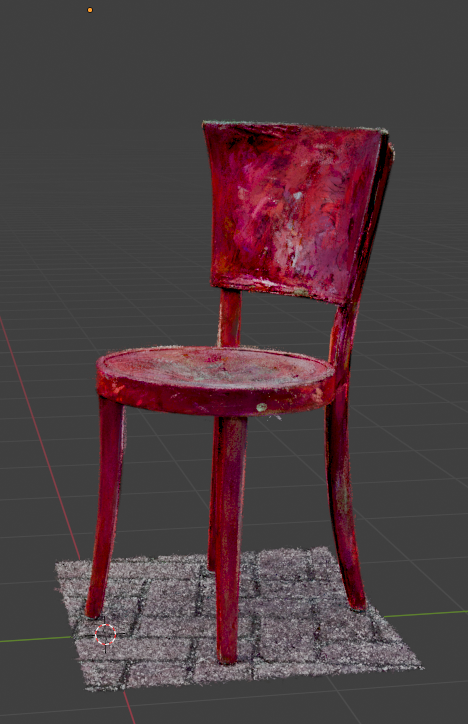
Below: the same chair model in Postshot and Blender
[](https://bookstack.hku.nl/uploads/images/gallery/2025-06/screenshot-3.png)
.ply in Blender
#### Compared to local photogrammetry (RealityCapture)
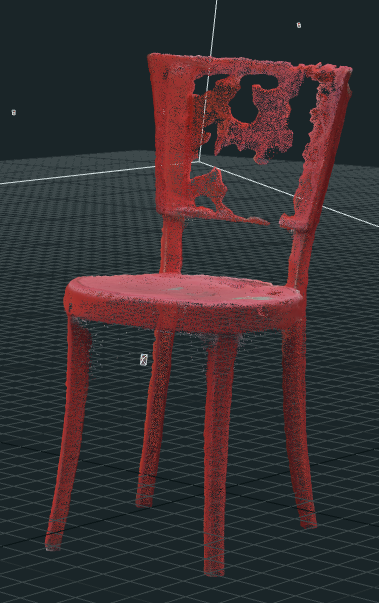
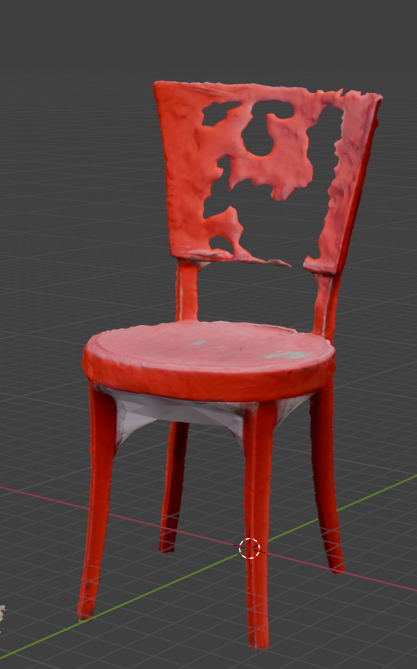
We've used the same source video for a render in RealityCapture. This render took about three minutes and shows one of the problems with photogrammetry: shiny objects become invisible. You can fix this by using a polarizing filter over your lens.
[](https://bookstack.hku.nl/uploads/images/gallery/2025-06/screenshot-5.png)
In RealityCapture
[](https://bookstack.hku.nl/uploads/images/gallery/2025-06/screenshot-6.png)
.obj imported in Blender
### Full workflow: filming->After Effects->Reality Scan->Postshot->Octane (Cinema4D)
This vid has a full workflow with great tips on every step. After effects is used for extracting photos from the video, Reality scan for aligning the photos, Postshot for generating the splats, and Octane for rendering them in Cinema4D.
Re-lighting the scene starts here: [https://www.youtube.com/watch?v=OzUxL\_UDMTk&t=3436s](https://www.youtube.com/watch?v=OzUxL_UDMTk&t=3436s)
### Thoughts on using Gaussian Splatting
As long as Gaussian splatting does not easily convert to meshes, it's use in live 3d engines might be limited. It might be more applicable to pre-rendered applications, where you have can re-edit the camera from the original recording. Change angles, change camera movement, etc. With the newer options to change lighting this will become even more relevant.
---
### More Splatting stuff
#### Turning a Gaussian Splat into a game
Playcanvas is an open-source online splat viewer. It can clearly do more than just view them, as you can walk through them as if it's a game environment. And of course: you can turn it into a game: [https://blog.playcanvas.com/turning-a-gaussian-splat-into-a-videogame](https://blog.playcanvas.com/turning-a-gaussian-splat-into-a-videogame)
#### Editing splats with SplatShop
Open source, with VR editor.
Edit splats, remove parts, move parts, clone parts, etc.
https://github.com/m-schuetz/Splatshop
#### Re-lighting Splats
Apparent you can re-light Splatted scenes. One option menioned is in the Octane rendering engine, another is using a UE5-plugin called Volinga
#### Re-lighting in Blender
Using the Kiri Engine plugin from here: https://github.com/Kiri-Innovation/3dgs-render-blender-addon
Manual and quick guides for Kiri Engine: https://www.kiriengine.app/blender-addon/3dgs-render
#### Various tutorials on Gaussian Splatting
importing .ply gaussian splat in Blender
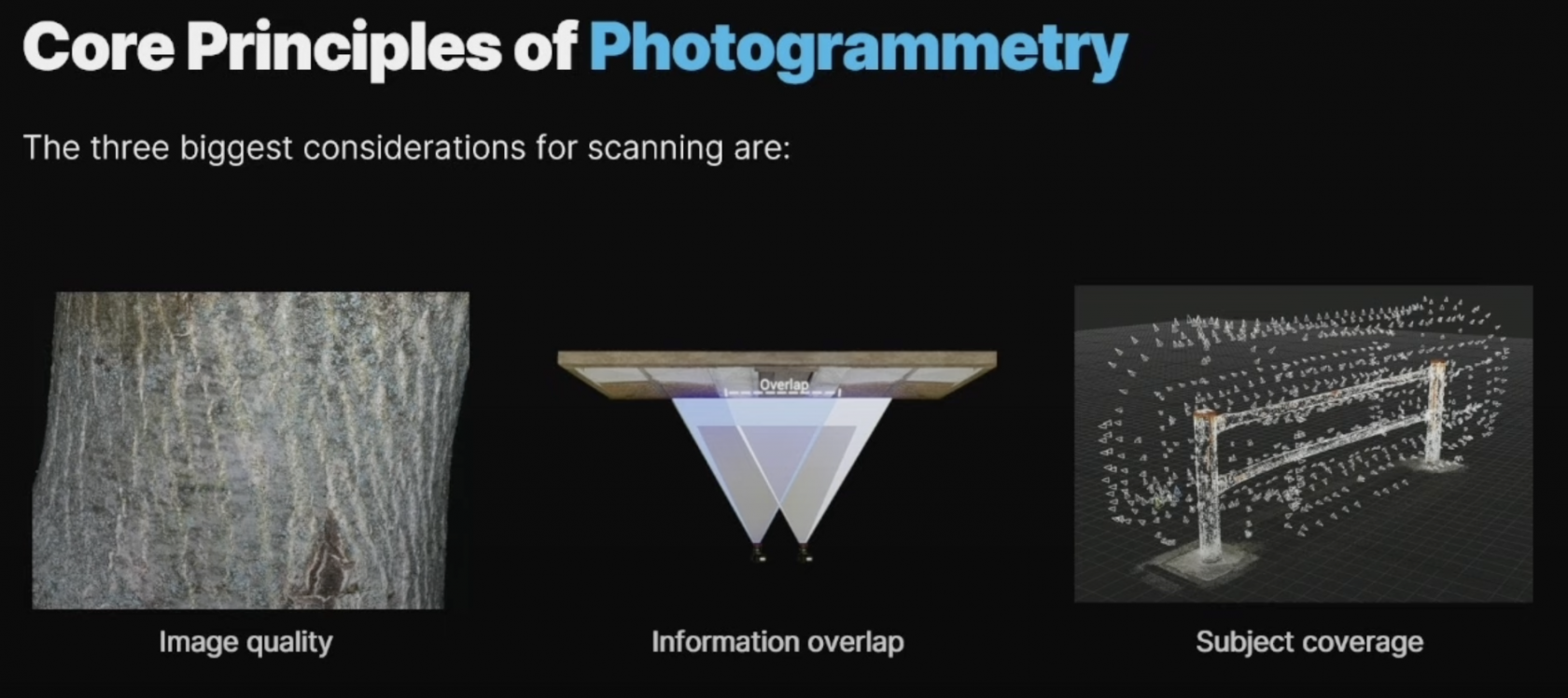
# Core principles of photogrammetry
Image quality, Information overlap, Subject coverage
Very good guide: [Photogrammetry Basics](https://dev.epicgames.com/community/learning/courses/blA/unreal-engine-capturing-reality-photogrammetry-basics-by-quixel/r222/unreal-engine-capturing-reality-an-introduction-to-photogrammetry)
Screenshots below were taken from this [Unreal Engine YouTube seminar](https://www.youtube.com/watch?v=5D-P2kRUuKA&t=928s)
[](https://bookstack.hku.nl/uploads/images/gallery/2025-04/screenshot-2025-04-15-at-11-59-44.png)
[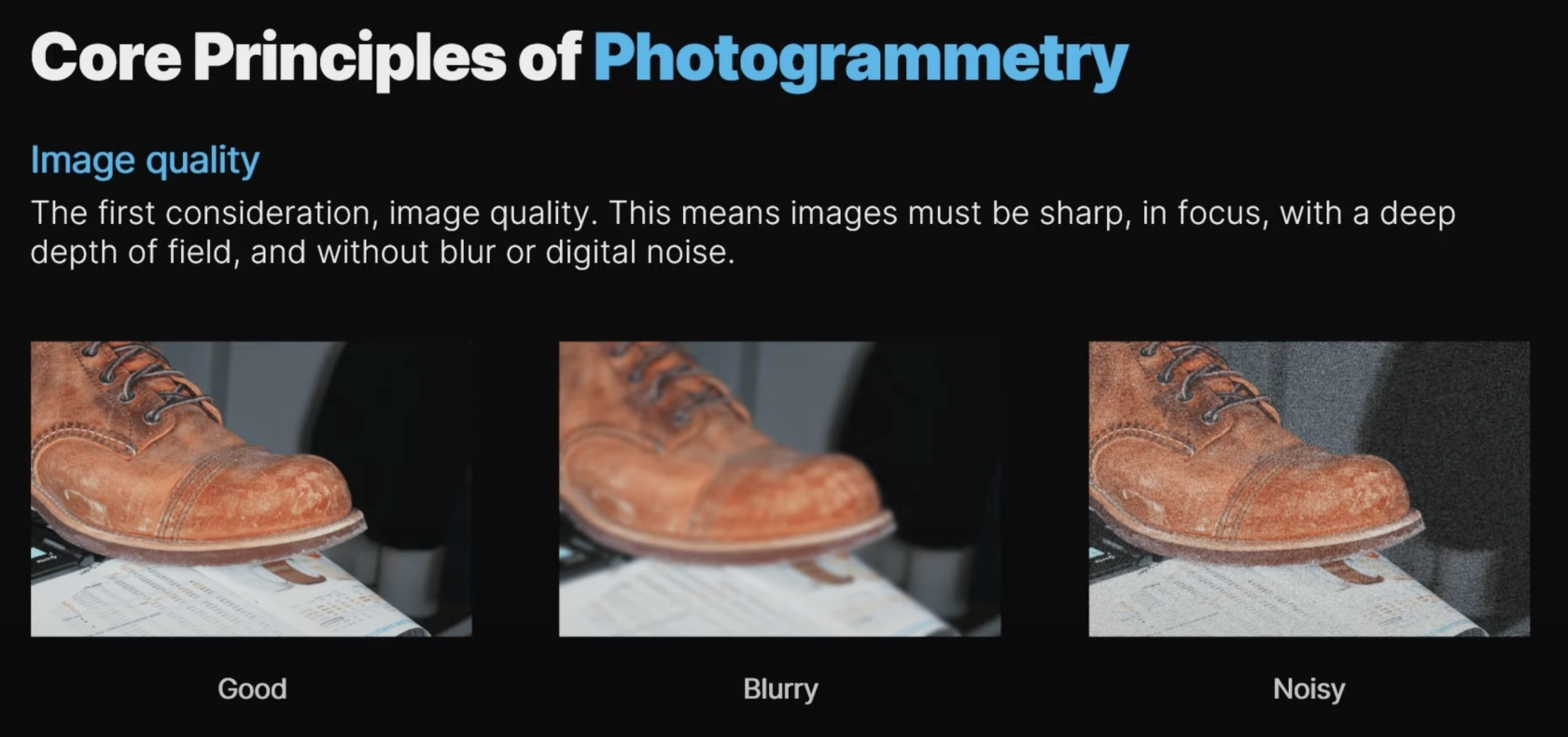](https://bookstack.hku.nl/uploads/images/gallery/2025-04/screenshot-2025-04-15-at-12-00-01.png)
[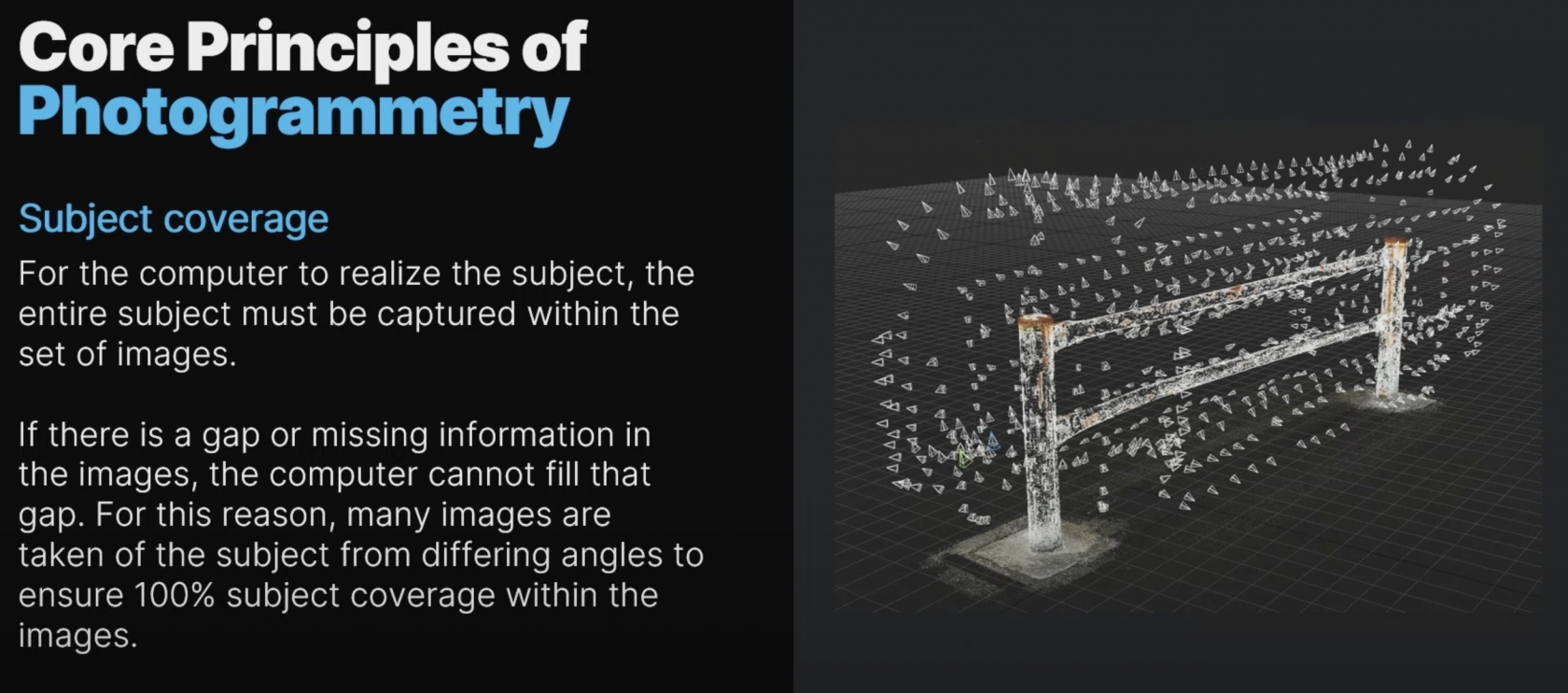](https://bookstack.hku.nl/uploads/images/gallery/2025-04/screenshot-2025-04-15-at-12-00-41.png)
[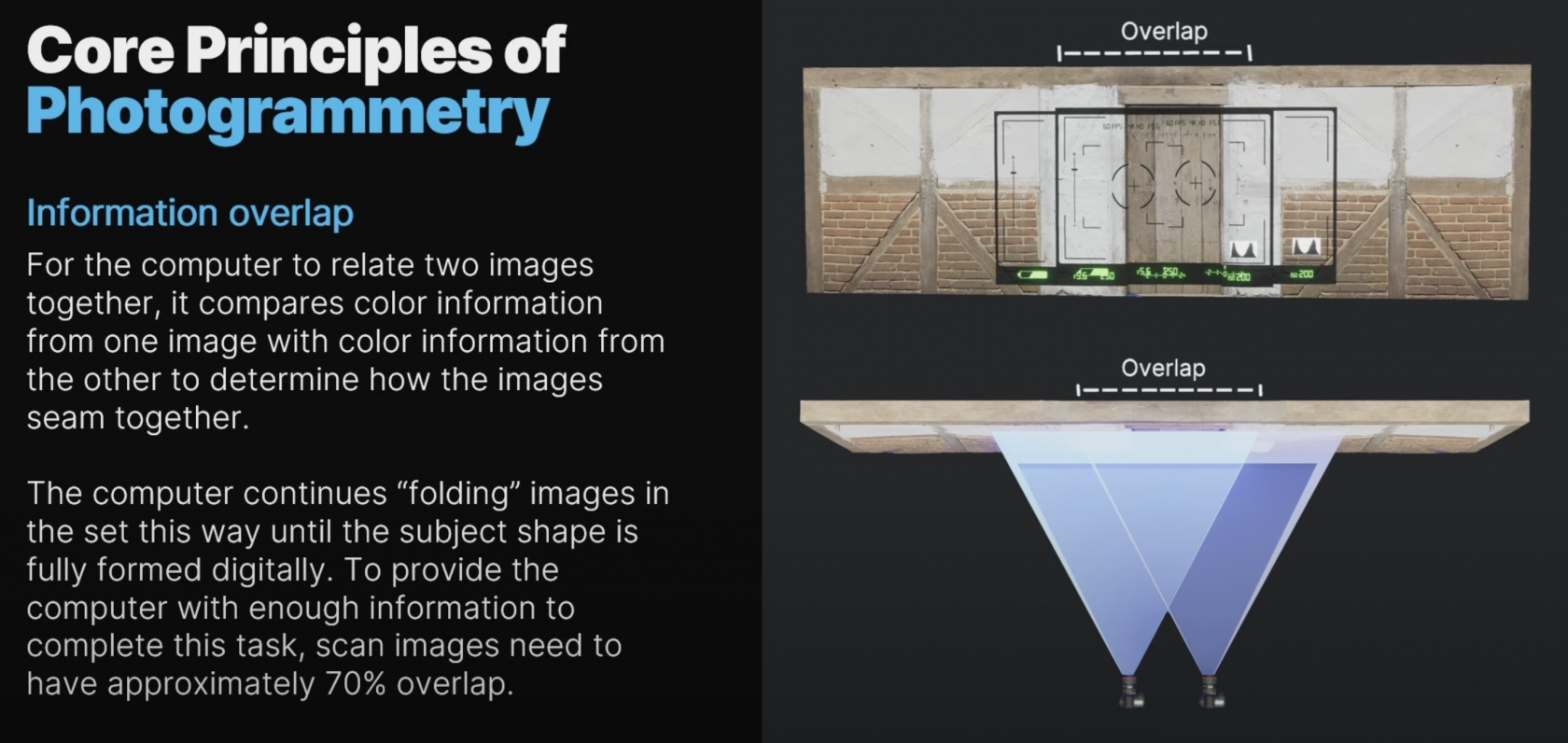](https://bookstack.hku.nl/uploads/images/gallery/2025-04/screenshot-2025-04-15-at-12-00-59.png)